Team Capacity Planning Template: Boost Project Forecasts

Are missed deadlines, team burnout, and a constant scramble to allocate resources all too familiar? These are classic signs that you're managing in the dark, without a clear picture of what your team can actually handle.
A solid team capacity planning template is what you need. It’s the tool that shifts you from reactive fire-fighting to proactive, strategic leadership.
Stop Guessing and Start Planning With a Template
This guide isn’t just about filling out a spreadsheet. It’s about building a foundational system to optimize your team’s performance and create a sustainable pace of work. The goal is to get a completely realistic view of everyone's bandwidth so you can make decisions based on data, not gut feelings.
Instead of just assuming your team has the bandwidth, a structured plan gives you concrete numbers to work with. It turns that vague feeling of being "too busy" into a measurable fact, like seeing a developer is slated for 120% capacity over the next three weeks. That kind of clarity is the first step toward fixing the problem before it starts.
The Urgency of Accurate Planning
Getting this right has never been more critical. A staggering 90% of leaders agree that matching their team's capacity to business demand is an urgent priority.
Despite this, most companies are still flying blind. Two-thirds struggle with forecasting, and a tiny 13% rate their own efforts as 'extremely effective.'
This huge gap is your opportunity. By using a simple, systematic template, you can leapfrog the competition and join the small circle of managers who steer their teams with genuine confidence.
The real power of capacity planning is its ability to replace guesswork with certainty. It lets you commit to projects knowing you have the people to get it done right, without pushing your team to the breaking point.
What Makes a Template So Essential?
A well-designed template is much more than just a schedule—it becomes the single source of truth for your entire team. It helps you see bottlenecks coming a mile away, assign work based on who's actually available, and set timelines you can trust.
Here’s why it’s a non-negotiable tool for any modern manager:
- Total Visibility: Everyone gets a clear, shared view of who is working on what and when. No more confusion or wasted effort.
- Smarter Forecasting: When you track planned hours against actual hours, your ability to estimate future projects gets dramatically better over time.
- Proactive Problem-Solving: You can spot that a team member is headed for overload weeks in advance and step in to rebalance the workload.
- Fair Work Distribution: It’s the easiest way to ensure tasks are spread out equitably, which is absolutely key for keeping morale high.
Key Components in Our Capacity Planning Template
Here's a quick look at the essential elements inside the downloadable template and what each one helps you accomplish.
| Component | What It Does | Example Data Point |
|---|---|---|
| Team Member List | Centralizes your team roster in one place. | Sarah Jones, UI/UX Designer |
| Total Available Hours | Calculates each person's weekly work capacity. | 40 hours |
| Time Off & Holidays | Accounts for PTO, holidays, and other non-work time. | 8 hours PTO (Friday) |
| Project Allocation | Assigns specific projects and tasks to team members. | Project Phoenix: 15 hours |
| Individual Capacity % | Shows each person's workload as a percentage. | 110% (Overallocated) |
| Team Capacity % | Gives a high-level view of the entire team's workload. | 95% (At Capacity) |
| Weekly/Monthly View | Allows you to toggle between short-term and long-term planning. | Week of Oct 23-27 |
This structure gives you everything you need to start making informed decisions immediately.
While our template focuses on project-level planning, it's also smart to think bigger. Integrating these practices with broader workforce planning strategies can strengthen your long-term resource management. If you want to brush up on the fundamentals first, check out our detailed guide on what is capacity planning.
Now, let’s get this template into your hands and show you how to put it to work.
How to Customize Your Planning Template
A template is a fantastic starting point, but its real magic happens when you make it your own. To turn a generic spreadsheet into a razor-sharp forecast of your team's bandwidth, you'll need to plug in your specific data. Think of this initial setup as the most critical step—it's what transforms the template into a reliable source of truth for all your future planning.
Once you've downloaded the Google Sheets or Excel file, your first job is to populate it with the information that defines your team. This is more than just data entry; you're building the foundation that gives your capacity calculations actual meaning. Without accurate inputs, even the most sophisticated template will spit out misleading numbers.
This simple workflow is what you're aiming for: moving your team from guesswork to successful, data-driven planning.
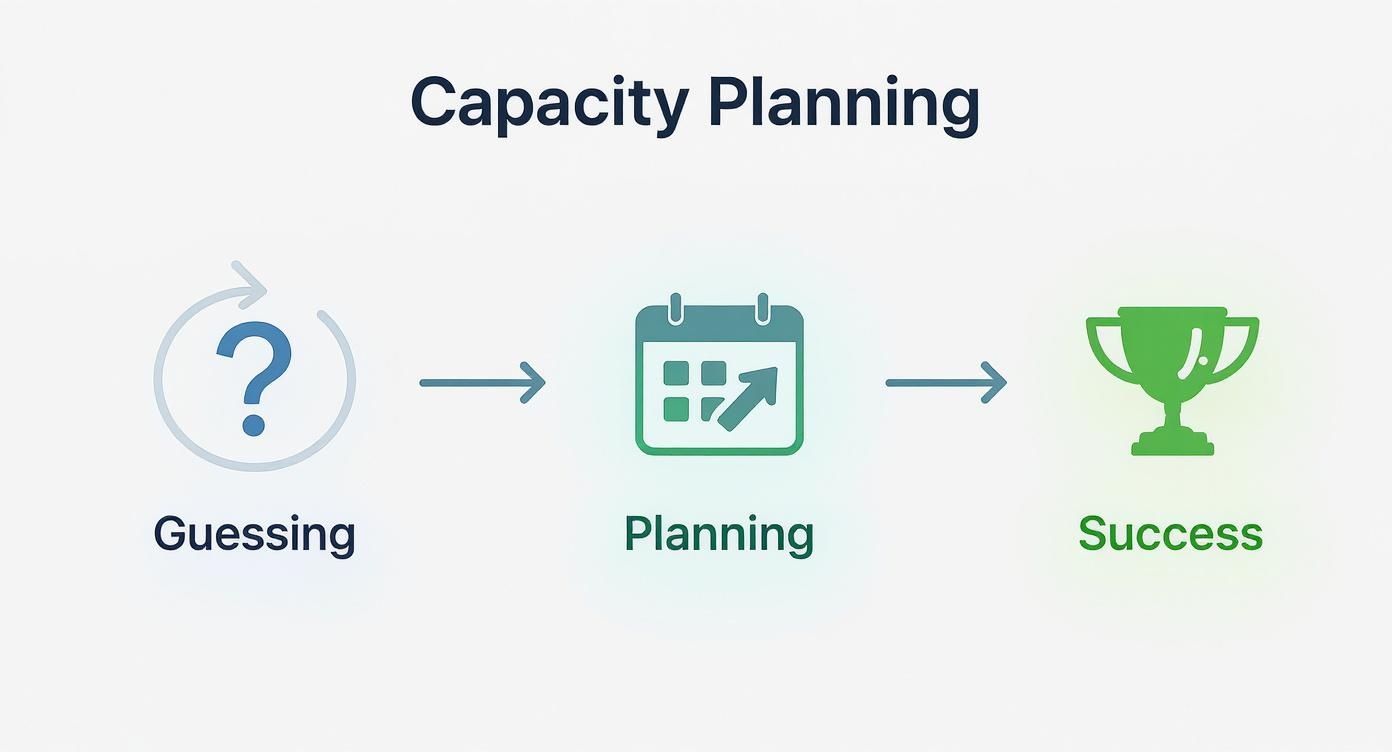
This is the shift from constantly putting out fires to proactively managing your team's workload. That's the whole point of using a capacity planning template in the first place.
Inputting Your Core Team Data
First things first, let's get the basics in there. The initial fields to customize are the most straightforward: your team members' names and their roles. This simple list grounds the entire document, turning abstract numbers into a real-time representation of your crew.
Next up, define each person's standard working hours. For most full-time folks, this is 40 hours per week, but it’s absolutely crucial to adjust this for part-timers, contractors, or anyone on a non-standard schedule. Getting this right from the start prevents you from over-allocating work before you've even begun.
For instance, if you have a designer who works a 32-hour week, putting that number in ensures their capacity is calculated correctly. This small detail helps prevent burnout and keeps project timelines realistic for their assignments. It makes a world of difference.
Accounting for Time Off
Nobody works every single day of the year, and your plan needs to reflect reality. The next critical step is to input all planned time off. This isn't just a suggestion; it's essential for accuracy.
Make sure you include:
- Vacations: Block out any approved vacation days for each team member.
- Public Holidays: Don't forget to account for all company-wide or regional holidays.
- Recurring Appointments: If someone has a standing weekly commitment, like a training session, get it on the calendar.
This process directly calculates what's called Net Capacity—the actual, realistic hours someone is available to work. Ignoring planned leave is one of the most common mistakes I see managers make, and it leads to plans that fall apart the minute the first person goes on vacation.
A plan that doesn't account for holidays and PTO isn't a plan; it's a wishlist. Accurately logging time off is the single best way to make your capacity forecast resilient and trustworthy.
Defining Work Types and Projects
With your team's true availability locked in, it’s time to define the work itself. Start by listing all the current and upcoming projects your team is juggling. I also highly recommend adding categories for non-project work, because that stuff eats up way more time than we ever anticipate.
Consider adding separate line items for recurring activities like:
- Administrative Tasks: All the time spent on emails, reporting, and internal paperwork.
- Team Meetings: This includes everything from daily stand-ups and one-on-ones to all-hands meetings.
- Contingency/Buffer Time: Always set aside a block of hours (a good rule of thumb is 15-20% of total capacity) for unexpected issues or urgent last-minute requests.
A software development team, for example, wouldn't just list their main project, "Project Phoenix." They’d also have separate line items for "Bug Fixes," "Code Reviews," and "Sprint Planning Meetings." This level of detail gives you a much clearer picture of where everyone's time is actually going.
By breaking work down this way, you avoid the common trap of assuming all available hours are purely for project tasks. This is the kind of customization that makes your team capacity planning template truly functional and accurate.
Understanding the Formulas That Power Your Plan
To really get the most out of your team capacity planning template, you have to peek under the hood at the simple but potent formulas that make everything click. These aren't just abstract calculations; they're what transform a basic spreadsheet into a dynamic forecasting tool. Once you grasp the logic, you can not only use the template but also tweak it with confidence as your team's needs evolve.
At its heart, the template draws a critical line between the hours you think you have and the hours you actually have. Getting this right is the secret to realistic planning and avoiding the burnout that always follows over-promising. Let’s break down the essential math.
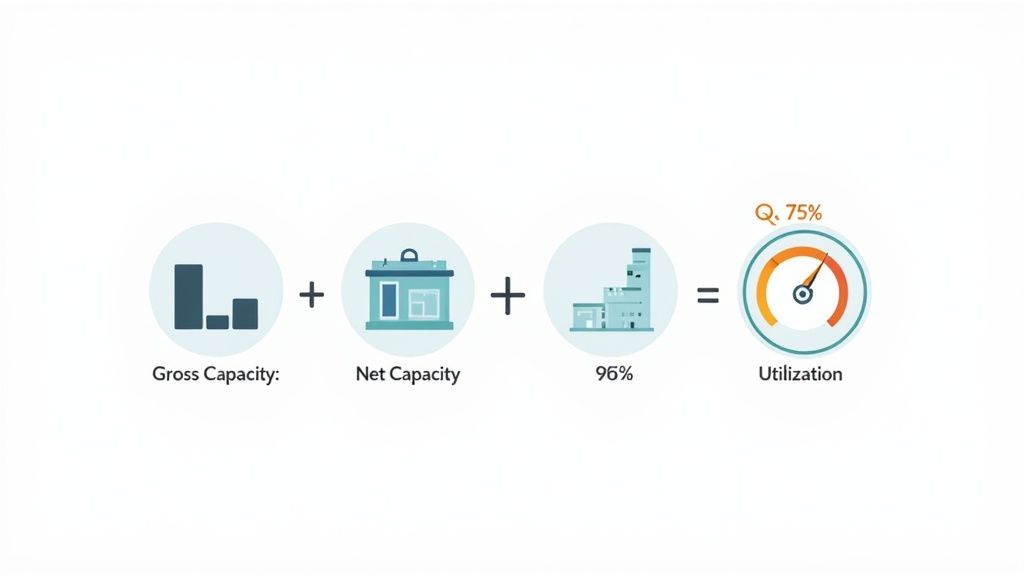
Gross Capacity: The Starting Point
The first metric you'll bump into is Gross Capacity. It’s the most straightforward calculation in the entire plan, representing the total possible work hours for a team member before you start subtracting things.
The formula is as simple as it gets:
Standard Weekly Hours x Number of Workdays
So, for a full-time employee on a standard 40-hour workweek, their Gross Capacity is 40 hours. If you have a part-timer working 20 hours a week, their Gross Capacity is 20 hours. Think of this number as the absolute maximum—a theoretical ceiling for an individual's workweek.
Net Capacity: The Realistic View
This is where the rubber meets the road. Net Capacity is the number that truly matters for accurate forecasting. It shows you the actual number of hours a person has available for project work after you account for all the necessary, non-project activities that eat into their day.
The formula looks like this:
Gross Capacity - (Time Off + Holidays + Meetings + Admin Tasks)
Let's run through a quick example. Imagine a developer named Sarah has a Gross Capacity of 40 hours next week. But she has a full day of PTO scheduled (8 hours) and typically spends about 4 hours in recurring sprint planning and review meetings.
Her Net Capacity isn't 40 hours. It's actually 28 hours (40 – 8 – 4). That’s a huge difference.
Planning against Gross Capacity is a recipe for missed deadlines and stressed-out teams. Net Capacity is your source of truth. It’s the real number of hours you can allocate to project work, and building your plan around it is non-negotiable for success.
This detailed, reality-based approach is what makes these templates so powerful. They're built to help you estimate demand, measure your actual capacity, and make smart decisions about how to allocate your team's time.
Utilization Rate: The Health Check
Finally, there’s the Utilization Rate. This percentage tells you how much of a person's Net Capacity is being used for assigned project work. It's the ultimate health check for your team's workload.
Here’s how you calculate it:
(Total Hours Assigned / Net Capacity) x 100
If Sarah has a Net Capacity of 28 hours and you assign her 25 hours of project tasks, her Utilization Rate is 89% (25 / 28 x 100). That’s a healthy, sustainable workload with a little breathing room.
But what if you assigned her 32 hours of work? Her utilization would jump to a whopping 114%. That red flag immediately tells you she's over-allocated and headed for burnout. This one metric helps you spot and fix these problems before they derail your projects. For a deeper dive into managing full-time employee workloads, our guide on how to calculate FTE can give you some valuable context for your workforce planning.
Getting comfortable with these three core formulas—Gross Capacity, Net Capacity, and Utilization Rate—is what turns the template from a simple spreadsheet into an indispensable management tool.
Putting the Template to Work: Real-World Scenarios
A template is just a tool. Its real power shows up when you start plugging in numbers from actual projects and see how it guides your decisions. It’s one thing to talk about capacity in theory, but it’s another to see it prevent a project from derailing.
Let's walk through a couple of classic project management challenges—one from a dev team, one from marketing—to see how the template works in practice. Think of these as a playbook you can adapt for your own team.
Scenario One: A Software Development Sprint
Meet Alex, a project manager steering a small software team. They're kicking off a two-month sprint to build a new feature set. His team is lean: a lead developer (Mark), two mid-level developers (Chloe and Ben), and a QA specialist (Dana).
Alex’s first move is to fill out the template with everyone’s net capacity for the next eight weeks. He’s careful to block out a public holiday in week two and Mark's upcoming vacation in week six. Next, he breaks down the project into high-level tasks and estimates the hours needed.
- Database Architecture: 40 hours
- API Development: 60 hours
- Frontend UI Build: 80 hours
- Integration & Testing: 50 hours
As he starts assigning these tasks in the template, a bright red flag pops up. In week three, Mark’s utilization skyrockets to 135%. Alex has assigned him both the complex API work and an urgent bug fix that just landed from a major client.
The template didn't just tell Alex that Mark was busy; it gave him a hard number. A 135% utilization rate is a concrete sign that the plan, as it stands, is broken and headed for burnout and delays.
This clear data point gives Alex options. The bug fix is non-negotiable, so he looks at the API task. He chats with Chloe, who has the skills to take on about a third of that work. This simple re-assignment drops Mark’s utilization to a much healthier 95%. This proactive shift prevents a bottleneck and keeps the sprint moving without overwhelming his lead developer.
Managing engineering hours is always a balancing act. To free up even more time for core development, many teams are turning to tools that handle repetitive work. For example, using automated code review tools can cut down on the time developers spend on manual checks, giving them back precious capacity.
Scenario Two: A Marketing Team Juggling Multiple Campaigns
Now, let’s check in with Sarah, a marketing manager. Her team is in a common bind: launching a major campaign for Client A while also keeping up with a monthly content retainer for Client B. It's a classic juggling act of deadlines and resources.
Her crew consists of a content writer (Liam), a graphic designer (Emily), and a social media specialist (Tom). Sarah fires up the team capacity planning template to map out all the deliverables for the month.
Here's the initial workload breakdown:
| Project | Task | Assigned To | Estimated Hours |
|---|---|---|---|
| Client A Launch | Blog Post Series | Liam | 20 |
| Client A Launch | Social Media Graphics | Emily | 15 |
| Client A Launch | Ad Campaign Setup | Tom | 18 |
| Client B Retainer | Four SEO Articles | Liam | 32 |
| Client B Retainer | Infographic Design | Emily | 10 |
| Client B Retainer | Weekly Social Posts | Tom | 12 |
At first glance, the hours seem manageable. But Sarah's been down this road before. She knows to account for the hidden work, so she adds a 15% buffer to everyone's schedule for meetings, emails, and other admin tasks.
The template immediately shows the problem: Liam’s utilization jumps to 110%. The sheer volume of writing is too much for one person once you factor in the day-to-day operational noise.
Instead of just telling Liam to "find the time," Sarah looks at the data. The template shows that Emily is only at 75% utilization for the month. Since Emily is also a great writer, Sarah asks if she can help co-author the blog series for Client A.
That one small tweak solves the problem. It rebalances the workload, bringing Liam’s utilization down to a sustainable 90% while bumping Emily's up to 85%. The template gave Sarah the insight she needed to make a smart, strategic move that protected her team and ensured both clients got high-quality work, right on schedule.
How to Adapt Capacity Planning for Remote Teams
Managing a distributed team throws a wrench in traditional capacity planning. When your people are spread across different cities or even countries, a simple 9-to-5, hour-by-hour plan just doesn't work anymore. The entire game shifts from tracking who is "at their desk" to measuring what they actually produce.
This means your team capacity planning template needs to be smarter. It has to account for asynchronous schedules, tangled time zones, and the unique rhythm of remote work.
Mastering Asynchronous Workflows
The flexibility of remote work is its greatest strength, but it can also completely derail a capacity plan if you're not careful. Someone on your team in a different time zone might have a few overlapping hours with you, but their day starts and ends on a totally different clock. This has a huge impact on collaborative tasks and project handoffs.
Here’s how to adapt your template to this new reality:
- Define Core Collaboration Hours: Don't leave it to chance. Set a specific window of time when everyone, no matter where they are, is expected to be online for real-time teamwork. This should be a dedicated line item in your plan.
- Track Work in Blocks, Not Just Hours: Instead of just dropping "8 hours" on a task, get more granular. A task might really need 4 hours of focused solo work and another 2 hours of collaborative review. This helps you schedule the right kind of work for the right part of the day, respecting everyone's time.
- Prioritize Crystal-Clear Handoffs: Document dependencies right inside your template. If a designer in Europe is handing off mockups to a developer in North America, that handoff is a critical milestone. It directly affects the developer's available capacity for the next day.
The point isn't to force everyone into a rigid, identical schedule. It’s to build a system where asynchronous work flows smoothly without creating frustrating bottlenecks or communication black holes. Visibility is everything.
Tracking the Invisible Workload
In a remote setup, it's dangerously easy for non-project work to swallow up a huge chunk of your team's capacity. Without the physical boundaries of an office, all the meetings, administrative chores, and endless Slack threads can expand to fill any empty space in the calendar. If you're not tracking this "invisible" work, your capacity plan is pure fiction.
Your template needs dedicated rows to capture these activities. Think about adding lines for:
- Recurring Meetings: All-hands, team syncs, and one-on-ones.
- Communication Overhead: Time spent clearing out emails, responding on Slack, and writing status updates.
- Admin Tasks: Things like filling out timesheets or preparing reports.
This is more important than ever. Workforce capacity planning is happening against a backdrop of massive labor market shifts. One estimate suggests 22% of jobs will be reshaped between 2025 and 2030. This means nearly 40% of existing skills could become obsolete, which is why precise capacity planning is so critical for aligning your team's skills with what the business actually needs. You can learn more about these transformative labor market changes on AIHR.
When you start logging these hours, you get a true picture of your team's Net Capacity. You might be shocked to find out they're spending 25% of their week on non-project tasks. That insight immediately tells you how to better allocate project work. For more tips on wrangling a distributed team, check out our guide on the best practices for remote teams. It's all about building a more resilient and efficient way of working.
Got Questions About Capacity Planning? We’ve Got Answers.
Even with the best template in hand, you'll probably have a few questions once you start plugging in your own team's data. That’s perfectly normal. Over the years, I've seen managers run into the same handful of challenges when they first get started.
Here are some of the most common questions that pop up, along with some straight-to-the-point advice.
How Do I Account for Unplanned Work in the Template?
This is a big one. The key is to stop aiming for 100% utilization. It sounds great on paper, but in reality, it sets your team up for failure. A much healthier and more realistic target is 75-85%.
Building this "buffer" right into your plan from the start is the best way to handle the inevitable fire drills and last-minute requests.
A simple way to do this in the template is to add a dedicated row for "Contingency" or "Unplanned Work." Formally assign a few hours to it each week. This small step makes your entire plan more resilient, preventing one surprise task from throwing everyone's schedule into chaos.
What Is the Best Time Frame for Capacity Planning?
There's no single right answer here—it really hinges on how your team operates. The trick is to think in layers, combining short-term execution with long-term vision.
- For agile teams: You'll want to live in the weekly or bi-weekly (sprint-by-sprint) view for your detailed planning.
- For strategic oversight: A monthly and quarterly view is your best friend for spotting bigger trends and allocating resources for future projects.
Our template is built for this exact purpose. Use the detailed weekly tab for the day-to-day assignments, which then automatically rolls up into the monthly summary. This gives you the ground-level view you need to manage the work and the 30,000-foot view for planning what's next.
The most effective capacity plans are layered. They combine a short-term, tactical view for the week ahead with a long-term, strategic outlook for the quarter. This dual focus keeps daily work on track while ensuring you're prepared for what's next.
Can This Template Work for Non-Project Teams?
Absolutely. While the examples often lean toward project work, the fundamental idea—matching work to available hours—is universal. You just need to shift your thinking about what constitutes a "project."
Think about a customer support team, for example. They could easily adapt the template. Instead of projects, their rows would be filled with their core responsibilities:
- Ticket Resolution
- Live Chat Support
- Documentation Updates
- Internal Training
From there, you'd estimate the hours needed for each function based on past data. Suddenly, the template becomes a powerful tool for ensuring you have enough coverage during peak hours and can schedule training without letting service levels drop.
How Often Should I Update the Capacity Plan?
A capacity plan that isn't updated is just a useless spreadsheet. To keep it as a living, breathing document, you need a simple, consistent update rhythm.
First, have your team members do a quick check-in at the end of each day to log their "actual hours" spent on tasks. It only takes a minute but provides a goldmine of accurate data.
Second, as the manager, you should block off time at the end of each week for a more thorough review. This weekly sync is the perfect moment to re-forecast for the week ahead, spot any potential resource bottlenecks, and make any necessary adjustments. The more dynamic your work is, the more often you'll want to peek at the plan.
Stop wrestling with spreadsheets and start making decisions based on real data. With DeskCove, you can automatically track the time your team spends on tasks and feed that information directly into your capacity plan. This gives you an accurate, real-time picture of your team's workload.
See how you can sharpen your project forecasts and prevent team burnout by visiting https://deskcove.com.