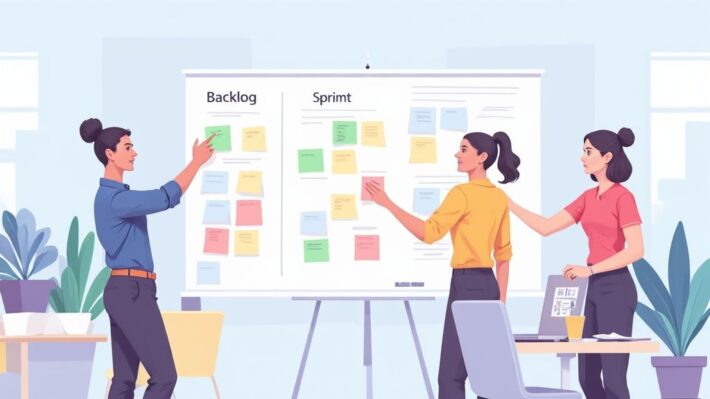
A Modern Team Capacity Planning Template

A solid team capacity planning template is your first real step away from constant firefighting and towards making smart, data-backed decisions. It swaps out the guesswork for a clear picture of who can do what, and when, heading off common project disasters before they even start. Let's dig into why the old ways just don't cut it anymore.
Why Old Capacity Planning Methods Fail
If you've ever run a team, you know the drill. A new project lands in your lap, and your brain immediately starts spinning. Who has the bandwidth for this? Can we actually hit this deadline without burning someone out?
For way too long, managers have been forced to rely on gut feelings and messy spreadsheets to answer these questions. This isn't just inefficient—it's a surefire recipe for failure.

The classic red flag of a broken system is when "everyone looks busy." Activity can feel like progress, but it’s a dangerous illusion. It often just hides bottlenecks, wasted effort, and the slow, creeping reality of team burnout. Without a proper way to see workloads, it’s impossible to tell the difference between productive hustle and just frantic, misaligned work.
The True Cost of Inaccurate Planning
Sticking with outdated methods creates a domino effect of problems that go way beyond simple scheduling mix-ups. These issues hit your team's morale and your bottom line—hard. The usual consequences look something like this:
- Constant Firefighting: Instead of focusing on big-picture goals, managers spend all day putting out fires and reshuffling priorities on the fly.
- Unpredictable Timelines: Deadlines become suggestions because the initial estimates were built on shaky assumptions about who was actually available.
- Team Burnout and Turnover: Overloading your top performers is the fastest way to lose them. When there's no transparency around workload, stress and disengagement are right around the corner.
This isn't a small problem. A McKinsey report highlighted that while 90% of leaders see capacity building as a top priority, a shocking 5% feel ready to tackle it. The report also found that two-thirds of companies see this misalignment as their single biggest resource management headache.
Moving from Guesswork to Data
The core issue is a complete lack of visibility. A spreadsheet might show a list of tasks, but it almost never accounts for all the "invisible work" that eats up the day—meetings, admin tasks, and those random interruptions. This is where a dedicated team capacity planning template completely changes the game.
By putting all the info on team availability, project timelines, and skill sets in one place, a template becomes your single source of truth. It turns vague feelings about who's "slammed" into hard data you can actually use.
This shift is key to understanding the full scope of what is capacity planning and making it work. That clarity lets you spot potential overloads weeks in advance, make informed calls on new projects, and protect your team's most important asset: their time.
Getting Started with Your Free Template
Okay, let's move from just reacting to problems to actually getting ahead of them. The first step is having the right tool. To help you cut through the chaos and see what's really going on with your team's workload, we've put together a free team capacity planning template that works in both Google Sheets and Excel. It's built to be straightforward but powerful, and you can tweak it to fit exactly how your team operates.
[Download Your Free Template for Google Sheets Here]
[Download Your Free Template for Excel Here]
Once you grab your copy, save a new version so you have your own master template to work from. This isn't just a blank slate; it's a connected system with different tabs that all talk to each other, giving you a complete view of your team's bandwidth.
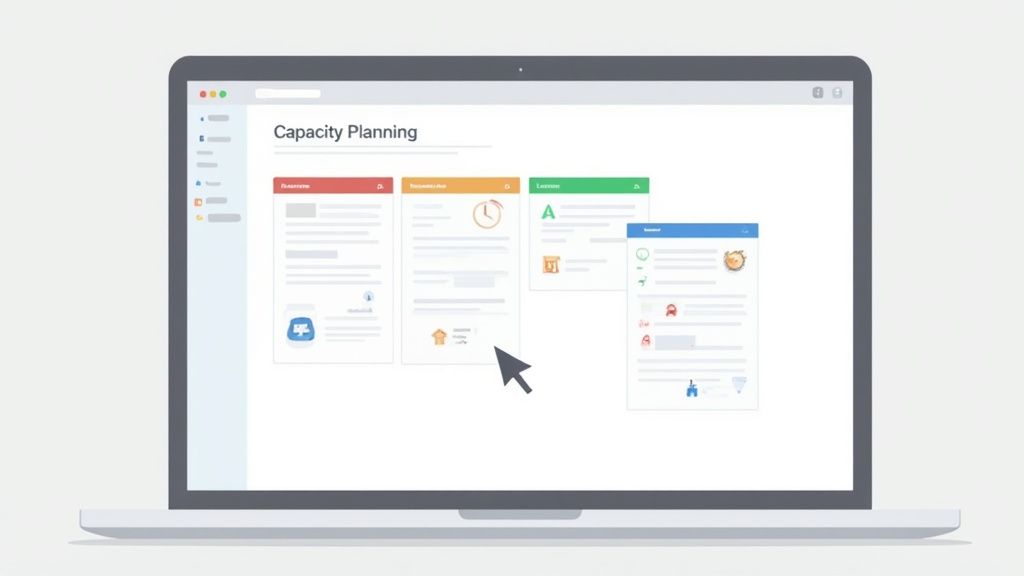
A Quick Tour of the Template Components
Before you dive in, let's walk through the key sheets inside. Each one has a specific job, feeding information into the next to build that dynamic overview of your team's capacity. Getting a feel for how they work together is the key to really mastering your resource planning.
Most solid templates, like ours, will include fields for things like the resource type (e.g., Project Manager, QA Engineer), individual names, project status, and of course, the start and end dates for the work. They also dig into task-level details like the specific task name, how many hours are needed, and even projected growth for future planning. If you want to see other layouts, you can find a variety of capacity planning examples online.
To make it simple, we've broken our template down into a few core components.
Template Components At A Glance
Here’s a quick summary of the sheets you'll be working with. Understanding what each one does and what you need to fill in will get you up and running in no time.
| Sheet/Tab Name | Primary Function | Key Columns to Populate |
|---|---|---|
| Team Roster | Lists all team members and their baseline availability. | Name, Role, Standard Weekly Hours, Planned Time Off. |
| Project Pipeline | Details all current and upcoming projects requiring resources. | Project Name, Start/End Dates, Total Estimated Hours. |
| Capacity Dashboard | Automatically visualizes workload vs. availability. | This sheet is automated; no manual input is needed. |
See the logic? You put in your inputs—who you have and what work is on the table—and the template handles the output, giving you a clear capacity analysis. This keeps everything clean and easy to update.
Customizing the Core Fields for Your Team
Before you see the magic happen in the dashboard, you've got to feed the template your team's real-world data. This initial setup is the most important part of the whole process. Your plan will only ever be as good as the information you put in.
First up, head to the Team Roster tab. This is where you define who is available to do the work.
- Full-Time Equivalent (FTE): This is a really important number. An FTE of 1.0 is your standard full-time employee, usually working 40 hours a week. Someone working half-time at 20 hours would be a 0.5 FTE. Using FTEs gives you a standard way to measure capacity, even with different schedules.
- Planned Time Off: Get all the vacations, public holidays, and any other known leave in here. I've seen so many plans fall apart because this was overlooked. It's a classic mistake that creates completely unrealistic forecasts.
- Billable vs. Non-Billable Hours: If you're an agency or any kind of client-facing team, this is a must. It’s smart to add a column to set a target for the percentage of billable work each person should have.
With your roster set, jump over to the Project Pipeline tab. This is where you'll list out every single piece of work that needs resources.
Pro Tip: When you estimate hours, be brutally realistic. It’s always, always better to overestimate a little than to underestimate. As you complete projects, start tracking your actual hours against your estimates. Over time, this will make your forecasting incredibly accurate.
This initial setup might take you an hour or so, but trust me, it will save you days of headaches and guesswork later. By taking the time to get these details right, you’re turning a generic spreadsheet into a tool that perfectly mirrors how your team actually works.
How to Use the Template in the Real World
Theory is one thing, but a team capacity planning template only really shows its value when you throw a real, messy project at it. So, let's step away from the setup guide and walk through a realistic scenario. You'll see exactly how this tool helps turn raw data into confident, strategic decisions.
Let's say you're managing a small software development team. You've got a major new feature launch, "Project Phoenix," looming on the horizon. At the same time, your team has to keep the lights on with ongoing maintenance and bug fixes, which we'll call "Sustainment." Trying to juggle these priorities without a clear view of your team's actual bandwidth is a classic recipe for missed deadlines and burnout.
Setting the Scene: A Software Development Scenario
Your team is made up of four key people, each on a standard 40-hour workweek. But before you can even think about assigning project tasks, you have to acknowledge that their plates are already partially full with recurring work that's essential but doesn't fit neatly into a project bucket.
It is absolutely vital to account for this non-project work first. Ignoring it is the single most common mistake people make in capacity planning, and it guarantees your plan will be unrealistic from the very beginning.
- Recurring Meetings: Think daily stand-ups, sprint planning, and one-on-ones. These easily eat up 10% of each person's week.
- Admin and Communication: We're talking about answering emails, updating tickets, and general team coordination, which can easily take another 10%.
Right off the bat, you can see that each 40-hour employee actually has about 32 hours of real capacity for dedicated project work. This 80% availability is a much safer, more realistic baseline. Now, let's plug this reality into the template.
Inputting the Data Step-by-Step
First things first, you’ll list each team member in the 'Team Roster' tab. Note their roles and—most importantly—their actual available hours after subtracting all that overhead. You also need to factor in that upcoming public holiday that will cut into one week's capacity.
Next, you'll head over to the 'Project Pipeline' tab. This is where you'll create entries for both "Project Phoenix" and "Sustainment."
For "Project Phoenix," you decide to break the work into a two-week sprint. Based on past projects and your team's estimates, you figure the sprint will require:
- 80 hours of Backend Development
- 60 hours of Frontend Development
- 30 hours of Quality Assurance (QA)
Then there's "Sustainment." For this, you allocate a fixed budget of hours per week to reflect the ongoing, often reactive nature of this work. This is a critical step for any team that isn't 100% project-based. Let's say you budget a flat 20 hours a week for this bucket.
A common pitfall is treating all work as if it's the same. By creating separate buckets for a high-priority, deadline-driven effort like "Phoenix" and ongoing operational work like "Sustainment," you can allocate resources with far greater precision. It protects your launch timeline from getting derailed by unexpected bug fixes.
Interpreting the Results and Making Decisions
With all the data in place, you click over to the 'Capacity Dashboard.' This is where the magic happens. The template's formulas automatically crunch the numbers, adding up the assigned hours for each person and comparing it against their available capacity. The whole thing is color-coded, so you can see what's happening at a glance.
And there it is. A few cells on the dashboard glow bright red. Your lead backend developer, who you assigned the lion's share of "Project Phoenix," is showing at 125% capacity for the sprint's first week. This is your early warning signal. Without this template, you probably wouldn't have known there was a problem until the developer was already drowning in work and falling behind.
But that red cell isn't a sign of failure; it's an opportunity for a strategic conversation. You now have several data-backed options to weigh:
- Re-allocate Tasks: Can a piece of the backend work be handed off to another developer? The dashboard shows another team member has some spare bandwidth.
- Adjust the Timeline: Is the sprint deadline set in stone? Maybe you can extend it by a couple of days to spread the load more evenly.
- De-prioritize Other Work: Could some of the "Sustainment" tasks wait until after the sprint to free up your lead dev for "Project Phoenix"?
These are the conversations that lead to successful projects. You're no longer just reacting to crises; you're proactively managing your resources. The visual dashboard makes it incredibly easy to walk stakeholders through the situation and back up your decisions with hard data. Proper workload management isn't about squeezing more hours out of people; it's about making smarter trade-offs. You can dive deeper into this topic in our complete guide on what is workload management.
In the end, you decide to offload a less complex backend task to your other developer and push one non-critical "Sustainment" ticket to the following week. You update the hours in the template, and the red cell flips to green. You’ve just dodged a potential bottleneck, saved your team from burnout, and kept your project on track—all before a single line of code was written. That's the practical power of a well-used team capacity planning template.
Connecting Real-Time Data for Better Accuracy
A static plan is a fragile one. Your team capacity planning template is a fantastic forecasting tool, but its real power is unlocked when it stops being a set of predictions and becomes a living document that learns and adapts. The secret is to feed it real-world data.
By connecting your plan to the actual hours your team works, you create an intelligent system. This simple step closes the gap between your estimates and reality, turning historical data into your most valuable asset for future planning.
https://www.youtube.com/embed/pGrK5w3TxBg
The Power of a Data Feedback Loop
The goal here is to stop guessing and start knowing. When you pull in data from time-tracking tools, you can run a simple but powerful post-mortem on your projects and sprints. Where did the initial estimates go wrong? Did a specific phase of the project take twice as long as everyone thought?
Answering these questions creates a powerful feedback loop. You’ll start to spot patterns—like chronic underestimation on certain types of tasks or which team members consistently need more or less time than planned. This isn't about micromanagement; it's about making your next forecast significantly more accurate than your last.
To make sure your capacity plan is truly effective, integrating real-time data from tools like time tracking apps is a must.
This workflow shows how it all comes together: you start with your team, map their time to projects, and end up with an insightful dashboard that tells the real story.
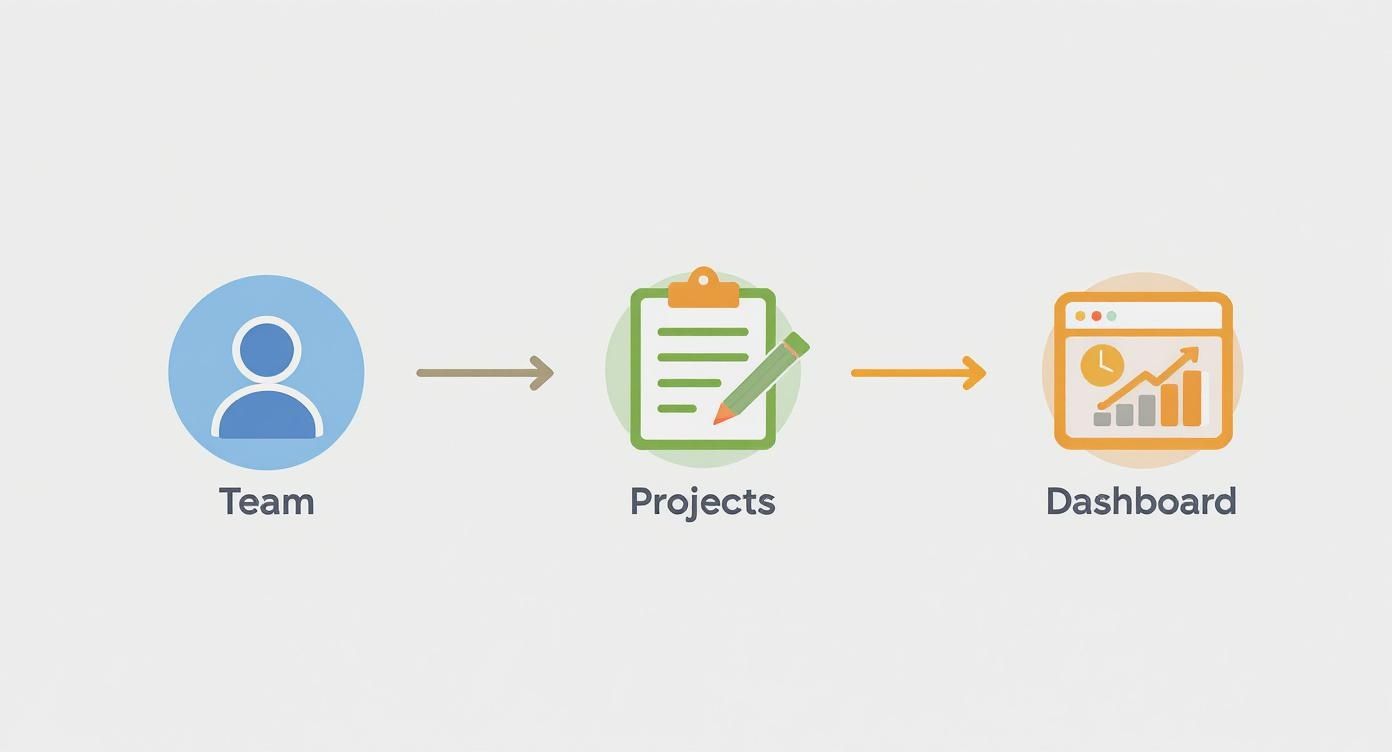
The key takeaway is that accurate inputs about your team and projects directly lead to a reliable, actionable dashboard for decision-making. Garbage in, garbage out, as they say.
Making Time Tracking Work for Your Team
Let's be honest: the idea of "tracking time" can make some people nervous. That’s why it's so important to frame it correctly. This isn’t about watching the clock or monitoring keystrokes; it's about protecting the team's capacity and making sure workloads are sustainable.
Here are a few practical tips to get the data you need without the drama:
- Focus on Project Buckets: Don't ask people to log every five-minute task. Instead, have them log time against high-level project buckets like "Project Phoenix – Backend" or "Sustainment – Bug Fixes." This gives you the data you need without creating a ton of administrative overhead.
- Automate Where Possible: Use tools that make tracking easy. Many modern solutions can automatically capture time spent in different apps, only requiring a quick review from the employee at the end of the day.
- Review Data Together: Go over the "actual vs. estimated" numbers as a team during sprint retrospectives. Frame the conversation around improving estimation skills collectively, not as an individual performance review.
This approach builds trust and shows everyone that the goal is to get better as a team. Choosing the right productivity tracking software can make all the difference here.
Key Takeaway: Think of your initial capacity plan as your hypothesis. The actual time tracked is the result of your experiment. By comparing the two, you get to refine your hypothesis for the next project, ensuring each planning cycle is smarter than the last.
Over time, this practice will become second nature. Your forecasts will get sharper, your deadlines will become more realistic, and your team will feel the positive impact of working within a system that truly understands and respects their time.
Adapting the Template for Remote and Hybrid Teams
Managing a distributed team adds a few extra layers of complexity to resource planning. A standard team capacity planning template is a solid starting point, but it needs some tweaks to really work for remote and hybrid setups. These work environments have their own unique challenges that can quietly drain your team's available time if you're not paying attention.
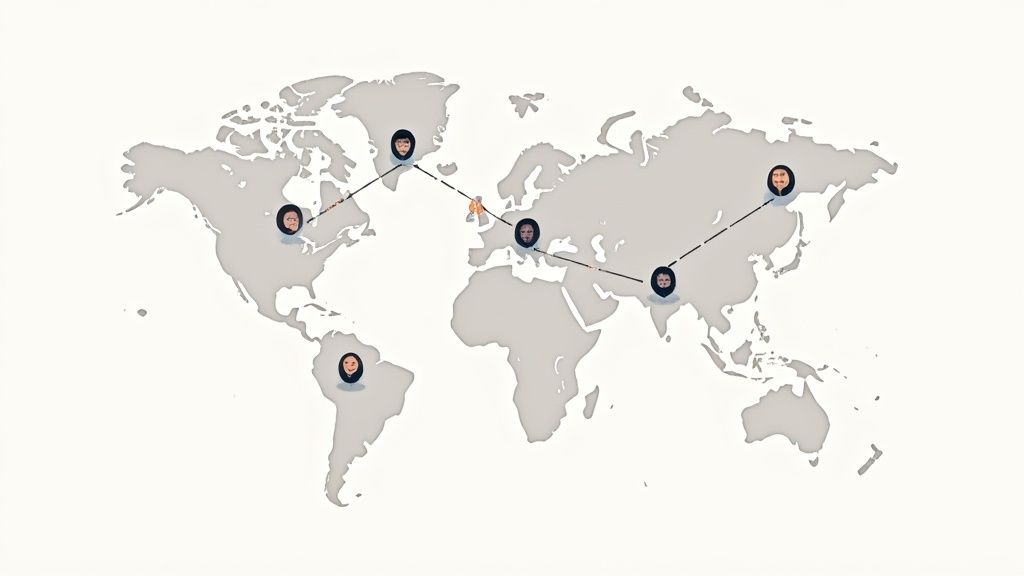
The biggest hurdles are often the ones you can't see. You're suddenly juggling different time zones, more flexible or asynchronous schedules, and a lot more communication overhead because you're not all in the same room. A simple hour-by-hour plan just doesn't cut it anymore.
Accounting for the Nuances of Distributed Work
The first thing to do is get real about the "invisible work" that eats up a remote team's capacity. This is all the stuff that doesn't directly create a project deliverable but is absolutely vital for keeping everyone aligned and moving forward.
You have to build these factors right into your capacity calculations:
- Time Zone Overlap: Don't just list time zones; figure out the actual hours of collaborative overlap. A team member in London and another in San Francisco might only have one or two good meeting hours a day. This seriously impacts how you schedule collaborative work.
- Asynchronous Communication Lag: You need to build in a buffer for tasks that get handed off between time zones. A question asked at the end of someone's day might not get an answer until the middle of the next. That creates built-in delays you have to plan for.
- Increased Meeting and Communication Time: Virtual meetings and the constant chatter in Slack or Teams take up way more time than you think. Some studies show managers can spend 3-4 hours per day on these admin tasks alone. You have to budget for this.
By dedicating a specific percentage of capacity in your template to "Communication Overhead," you create a realistic buffer that prevents over-commitment. This simple change can be the difference between a sustainable workload and a fast track to burnout for your remote staff.
Using the Template for Transparency and Well-Being
For remote and hybrid teams, a capacity planning template is more than a scheduling tool—it’s a lifeline for transparency and trust. It gives everyone a shared, objective look at the workload, which is crucial when you can't just glance across the office to see who's buried in work.
Practical Tips for Remote Team Planning
Here are a few pro-tips for adapting your template to better support your distributed team and foster a healthier work environment. For more ideas on improving remote performance, check out these strategies for leveraging technology to boost your remote work teams.
- Visualize Time Zones: In your 'Team Roster' tab, add a column showing each person's primary time zone. It's a simple visual cue that helps you make much smarter decisions when assigning collaborative tasks.
- Factor in "Focus Time": Encourage your team to block out and protect "focus time" for deep work. You can even represent this in the template as a recurring non-project task, making sure it gets respected during sprint planning.
- Use It in One-on-Ones: Pull up the capacity dashboard during your one-on-one meetings. It's a fantastic, data-driven way to start a conversation about workload and stress levels without having to rely on just gut feelings.
When you make these adjustments, your team capacity planning template evolves. It stops being a rigid plan and becomes a dynamic tool that helps you set clear, realistic expectations and actively protect your team from burnout, no matter where they are.
Common Questions About Team Capacity Planning
Switching to a more structured way of managing your team’s time is a great move, but it almost always brings up a few questions. Getting a handle on these common queries is what turns your team capacity planning template from just another spreadsheet into a tool you can't live without.
Let's walk through some of the most frequent hurdles and questions that pop up when teams start using data to guide their work.
How Often Should I Update the Template?
This really depends on your team's rhythm. If you're running in agile sprints, updating the template weekly or bi-weekly is your best bet. Tackling it during sprint planning meetings is a natural fit, making sure it always reflects the latest priorities and any changes in the backlog.
For teams working on longer, more waterfall-style projects, a monthly check-in might be enough to keep things on track. The most important thing, though, is to treat the template as a living document.
A capacity plan is only useful if it reflects reality. Any major change—a new project being approved, a significant shift in scope, or a team member taking unexpected leave—should trigger an immediate update.
Making this a habit stops the plan from becoming stale and ensures you're always making decisions based on what's actually happening right now.
What Is the Biggest Mistake to Avoid When Starting Out?
Hands down, the single biggest pitfall is forgetting about all the non-project work. It's so tempting to look at a 40-hour week and plug all 40 of those hours into project tasks. This is a surefire recipe for missed deadlines and frustration.
This approach completely overlooks the "invisible work" that eats up a huge chunk of everyone's day. We're talking about things like:
- Recurring meetings and daily stand-ups
- Fielding emails and Slack messages
- Admin tasks and filling out reports
- Putting out fires and helping teammates
- Professional development and training
A much safer and more realistic approach is to budget only 70-80% of a person's total time for dedicated project work. If you ignore this overhead, you'll constantly overestimate what your team can do, leading to impossible deadlines and a fast track to burnout.
How Do I Manage Team Members with Multiple Skills?
Having versatile people on your team is a massive advantage, but it can make planning a bit tricky. A good template helps you get more granular with how you allocate their time.
Instead of just listing a person's name, break out their distinct skills or roles into separate line items. For instance, if you have a designer who also does a bit of coding, you could list her in the template twice:
- Maria – UI/UX Design (allocated for 60% of her capacity)
- Maria – Frontend Dev (allocated for 40% of her capacity)
This little trick gives you a much clearer and more accurate picture of where your resources truly lie. It stops you from accidentally overloading a multi-talented team member by assuming all their time is up for grabs for any task. It also helps you spot skill-specific bottlenecks before they bring a project to a halt.
Does This Template Work for Very Small Teams?
Absolutely. In fact, for a really small team, a solid capacity plan can be even more crucial. When you only have a handful of people, how each person spends their time has an outsized impact on what the team can deliver.
For a team of three or four, the template becomes invaluable. It helps you see if one person is consistently becoming the bottleneck for every project. It also gives you the hard data you need to justify bringing on a new hire or to confidently decide which new client projects you can realistically take on. The basic idea of matching capacity to demand is universal—it builds the foundation for smart resource management, whether your team has three people or three hundred.
Ready to transform your team's productivity with data-driven insights? DeskCove provides the real-time visibility you need to make your capacity planning accurate and effective. Stop guessing and start knowing. Discover how DeskCove can streamline your remote team management today.