12 Best Remote Work Productivity Tools for Teams in 2025

In a distributed workforce, the right technology stack is not just a convenience; it's the backbone of a high-performing team. Navigating the crowded market of remote work productivity tools can be overwhelming, with every platform promising seamless collaboration and unmatched efficiency. This comprehensive guide cuts through the marketing noise to deliver a practical, in-depth comparison of 12 leading solutions designed to empower your team.
We move beyond generic feature lists to provide an honest assessment of what works, what doesn't, and who each tool is truly for. Whether you are a project manager at a growing agency, a freelancer managing multiple clients, or a team owner building a resilient remote culture, this resource is designed for you. We will analyze everything from all-in-one suites like Microsoft 365 and Google Workspace to specialized project management platforms such as Asana and Trello, and even powerful automation connectors like Zapier. For a broader perspective on enhancing remote teamwork, you can also explore the best remote collaboration tools for a more focused look at teamwork dynamics.
Inside this guide, you will find a detailed breakdown of each tool, complete with:
- Key feature analysis and real-world use cases.
- Transparent pricing comparisons and best-fit scenarios.
- Honest pros and cons based on practical application.
- Screenshots and direct links to help you evaluate each platform.
Our goal is to equip you with the insights needed to select and implement the perfect combination of remote work productivity tools, creating a digital environment where your team can thrive, regardless of location. Let's dive in.
1. DeskCove
DeskCove stands out as a premier choice among remote work productivity tools, offering a robust, all-in-one solution for time tracking and employee monitoring. It’s engineered for managers and team leaders who require granular visibility into how their remote teams operate, moving beyond simple time clocks to provide actionable insights. The platform’s core strength lies in its ability to automatically capture work hours, application usage, and website visits, creating a transparent and data-driven picture of daily activities.
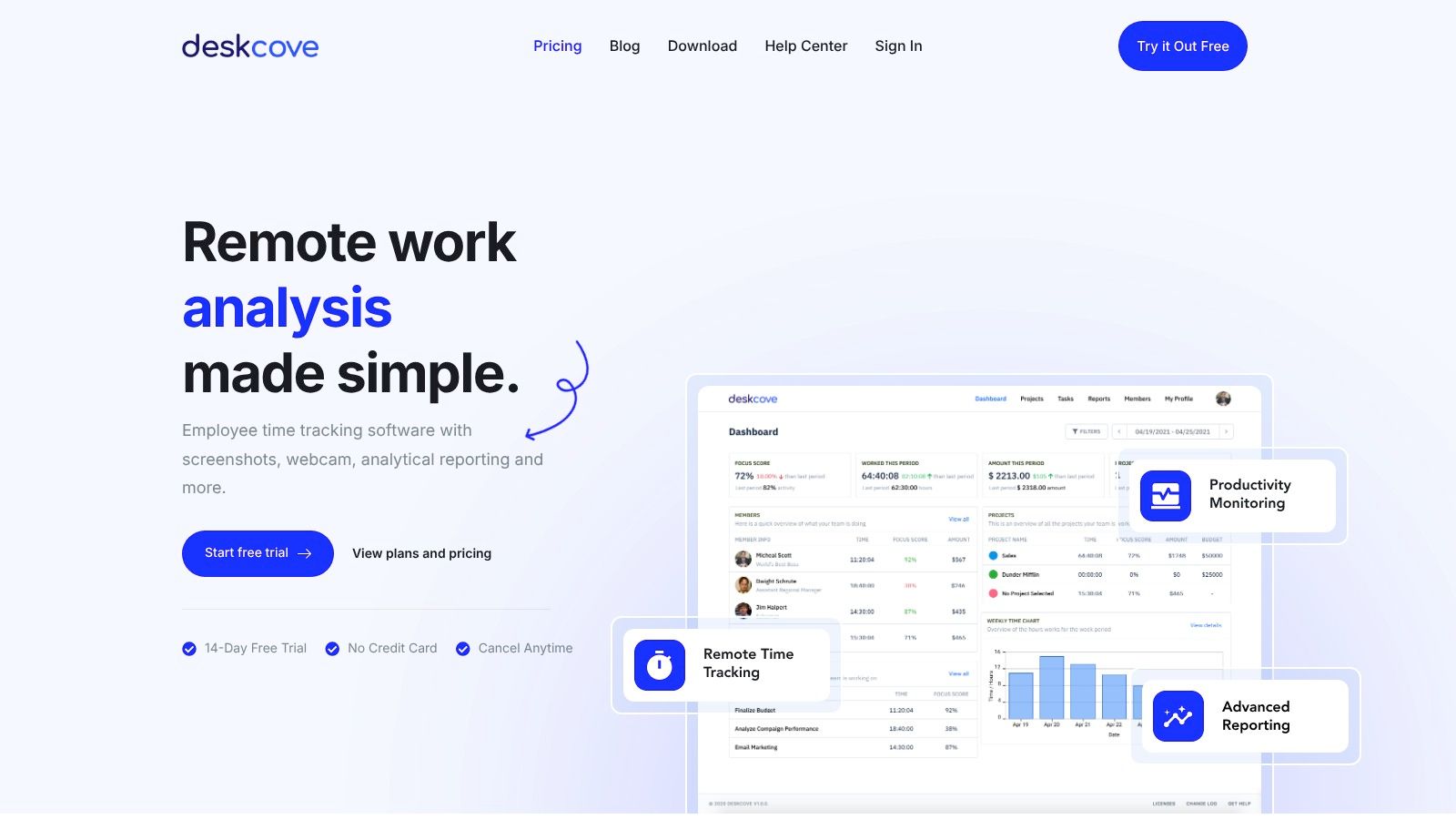
Unlike many platforms that offer a narrow set of features, DeskCove provides a comprehensive suite designed for accountability and optimization. Its automatic, random screenshots and optional webcam captures give managers a real-time view of progress without requiring constant check-ins, fostering trust while ensuring focus. This makes it an ideal tool for agencies managing multiple client projects or businesses looking to pinpoint and eliminate productivity bottlenecks. The detailed analytical reports allow for strategic resource allocation and workflow improvements based on concrete data, not guesswork.
Key Features and Use Cases
- Automatic Time and Activity Tracking: The platform runs discreetly in the background, tracking time spent on specific projects and tasks. It also monitors application and URL usage, helping managers understand which tools are being used effectively and identify potential distractions.
- Configurable Monitoring: A significant advantage is the ability to customize monitoring settings on a per-employee basis. You can adjust the frequency of screenshots or disable certain features for specific roles, balancing accountability with employee privacy.
- In-Depth Reporting: Generate comprehensive reports that break down productivity by employee, project, or date range. These insights are invaluable for client billing, performance reviews, and process optimization.
Practical Considerations
- Pros:
- Detailed and automated tracking provides unmatched visibility into remote work.
- Flexible, per-user settings adapt to diverse team structures and privacy needs.
- Comprehensive reporting turns raw data into actionable business intelligence.
- Cons:
- The monitoring features may feel invasive to some employees if not introduced with clear communication and team policies.
- The pricing model, while transparent, may be a hurdle for very small teams on a tight budget.
Pricing: DeskCove offers a straightforward plan starting at $10 per user per month. A 14-day free trial is available without requiring a credit card, allowing teams to fully evaluate its capabilities.
Website: https://deskcove.com
2. Microsoft 365
Microsoft 365 is an all-encompassing productivity ecosystem that provides a deeply integrated suite of tools essential for remote teams, particularly those already vested in the Windows environment. It bundles classic Office applications like Word and Excel with powerful cloud services such as Teams, OneDrive, and SharePoint, making it one of the most comprehensive remote work productivity tools available. Its primary strength lies in seamless interoperability; a document created in Word can be co-authored in real-time, shared via Teams, and stored securely in a SharePoint site without ever leaving the ecosystem.
This unified platform excels in environments where compliance and robust security are non-negotiable. For many businesses, standardizing on a single, trusted vendor simplifies administration and security protocols significantly.
Best For and Pricing
Microsoft 365 is the ideal solution for enterprises and SMBs seeking a single, integrated platform to manage communication, documentation, and project collaboration. It is especially effective for organizations that require enterprise-grade security, extensive administrative controls, and a high degree of compliance.
- Microsoft 365 Business Basic: Starts at $6.00 per user/month and includes web/mobile versions of Office apps, Teams, and 1 TB of OneDrive storage.
- Microsoft 365 Business Standard: At $12.50 per user/month, this plan adds desktop versions of the core Office apps.
Key Features & Limitations
| Feature Highlights | Potential Downsides |
|---|---|
| Integrated Communication Hub: Microsoft Teams combines chat, video meetings, calling, and file sharing into a single application, serving as the central nervous system for remote collaboration. | Complexity for Small Teams: The extensive admin center and sheer number of features can be overwhelming for smaller organizations or teams without dedicated IT support. |
| Real-Time Co-authoring: Simultaneous editing across Word, Excel, and PowerPoint (web, desktop, and mobile) allows teams to collaborate on documents without version control issues. Each user also receives 1 TB of OneDrive cloud storage for secure file management. | Plan-Gated Features: The most affordable "Business Basic" plan lacks the full desktop versions of Office apps, which can be a significant limitation for users who rely on advanced features or prefer the offline experience. This often pushes teams toward more expensive plans. |
| Robust Security and Compliance: Built-in security features, including identity and access management through Entra ID and advanced threat protection options, provide enterprise-level security that is critical for managing a distributed workforce securely. | Steep Learning Curve: While individual apps are familiar, mastering the integration between tools like SharePoint, Teams, and Planner requires dedicated training and a clear implementation strategy to unlock the platform's full potential. Without it, teams may only scratch the surface of its capabilities, leading to inefficient workflows. |
Website: https://www.microsoft.com/en-us/microsoft-365/business/microsoft-365-plans-and-pricing
3. Google Workspace
Google Workspace offers a cloud-native, deeply interconnected suite of tools designed from the ground up for seamless remote collaboration. Its core strength lies in its simplicity and accessibility; users can access Gmail, Calendar, Docs, Sheets, and Meet from any device with a web browser, making it one of the most frictionless remote work productivity tools available. The platform excels at real-time, simultaneous document editing, where teams can see changes instantly without the need for desktop software.
This web-first approach minimizes IT overhead and ensures that every team member is always working on the most current version of a file. The recent integration of Gemini AI features further enhances productivity by automating tasks, summarizing content, and generating creative ideas directly within the core applications.
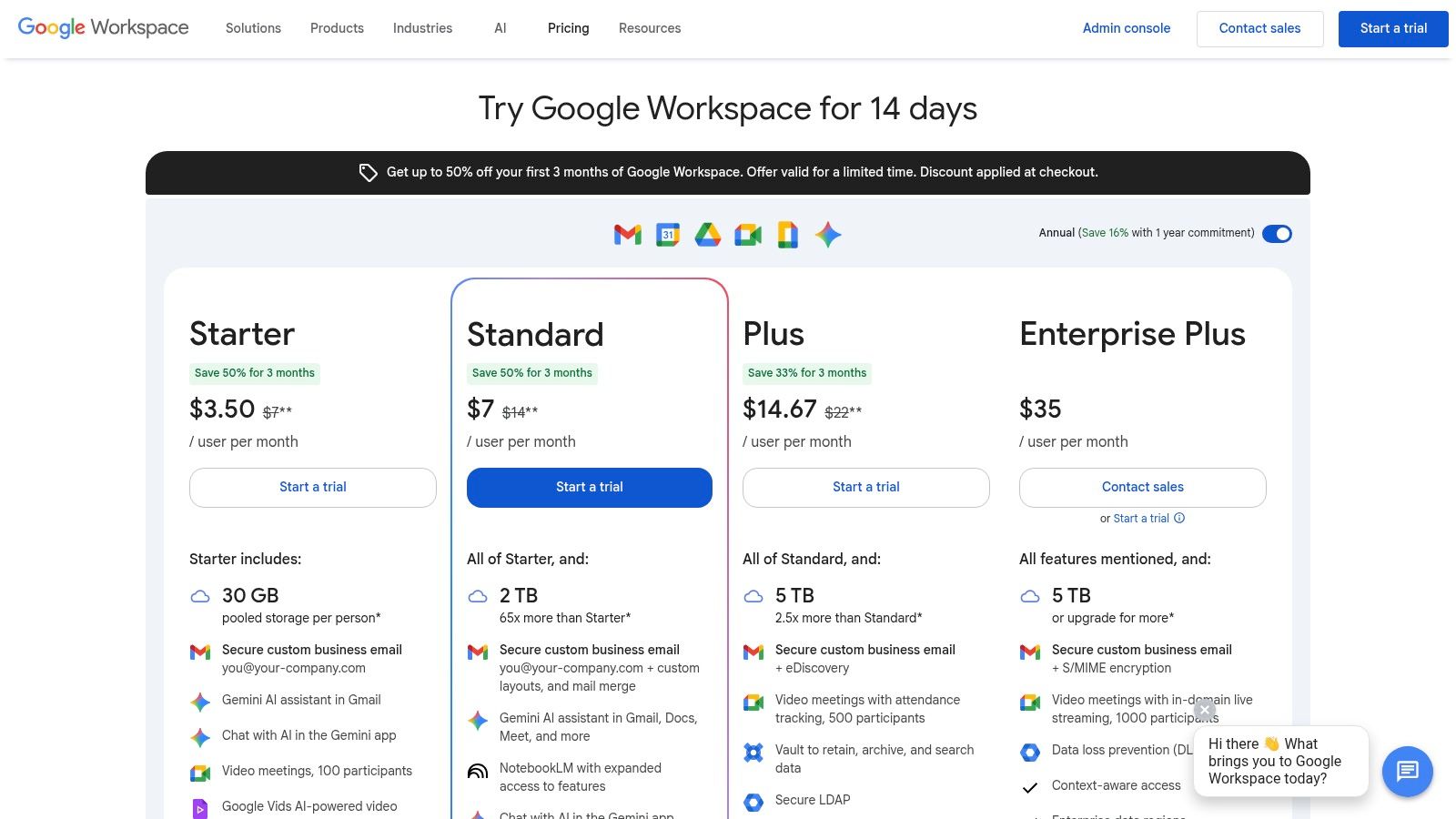
Best For and Pricing
Google Workspace is ideal for startups, SMBs, and agile teams that prioritize real-time collaboration and a streamlined, browser-based user experience. It is particularly effective for organizations that value speed, simplicity, and cross-platform accessibility over complex administrative controls.
- Business Starter: Starts at $6 per user/month and includes core apps and 30 GB of pooled storage per user.
- Business Standard: At $12 per user/month, it increases storage to 2 TB per user and adds meeting recording capabilities.
Key Features & Limitations
| Feature Highlights | Potential Downsides |
|---|---|
| Superior Real-Time Collaboration: Docs, Sheets, and Slides offer a best-in-class co-authoring experience where multiple users can edit simultaneously with minimal lag. The integration with comments and action items keeps collaboration fluid and contextual. | Storage Limits on Lower Tiers: The 30 GB of storage on the Business Starter plan can be restrictive for teams working with large files or video assets, often forcing an upgrade to the more expensive Business Standard plan. |
| Seamless App Integration: The platform's components are tightly woven together. An event created in Gmail automatically populates Google Calendar, and a file attached from Google Drive can be opened and edited directly within a Google Meet video call. | Preference for Desktop Apps: Power users accustomed to the advanced features and offline capabilities of desktop applications like Microsoft Excel or Word may find the web-based Google Sheets and Docs to be less robust for complex tasks. |
| Built-in AI Assistance: With integrated Gemini AI, users can draft emails in Gmail, create formulas in Sheets, or summarize lengthy documents in Docs. This built-in intelligence helps accelerate workflows and reduce manual effort without requiring third-party tools. | Advanced Security is Tier-Gated: Critical security features like data loss prevention (DLP), security key management, and advanced endpoint management are reserved for the higher-priced Business Plus and Enterprise tiers, which may be a concern for security-conscious SMBs. |
Website: https://workspace.google.com/pricing
4. Slack
Slack has fundamentally reshaped digital communication, establishing itself as the de facto virtual office for countless organizations. It replaces disjointed email chains with organized, searchable channels for specific projects, teams, or topics, making it one of the most effective remote work productivity tools for centralized conversation. Its core strength is creating a single, shared hub where both synchronous (Huddles, calls) and asynchronous (threaded messages, channel posts) collaboration can happen fluidly.
The platform excels at reducing context-switching by integrating with thousands of other applications, bringing notifications and actions from tools like Google Drive and Asana directly into the messaging interface. This deep integration transforms Slack from a simple chat app into a command center for a team's entire workflow, a key factor in boosting remote worker productivity.
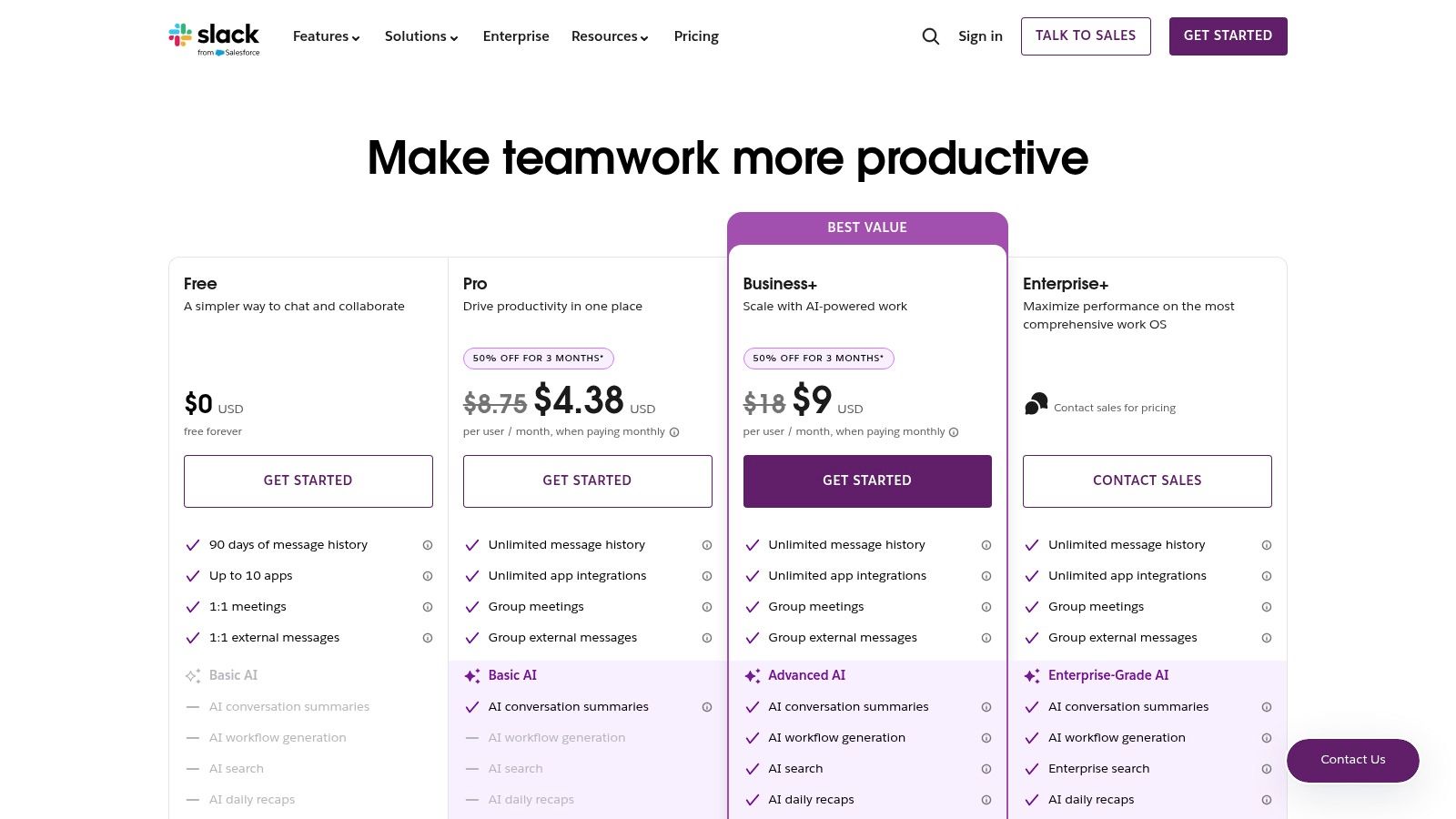
Best For and Pricing
Slack is best for tech-savvy teams of all sizes, from startups to large enterprises, that prioritize real-time communication and deep software integrations. It is particularly powerful for agile development, marketing, and support teams who need to coordinate quickly and transparently.
- Free: Offers 90 days of message history, 10 app integrations, and one-on-one Huddles.
- Pro: Starts at $7.25 per user/month (billed annually) and includes unlimited message history, unlimited integrations, and group Huddles with screen sharing.
- Business+: At $12.50 per user/month (billed annually), it adds advanced identity management (SAML-based SSO) and data exports.
Key Features & Limitations
| Feature Highlights | Potential Downsides |
|---|---|
| Channel-Based Communication: Organizes conversations into dedicated public or private channels, making information easy to find and reducing the noise of a single, massive inbox. Slack Connect also extends this capability to securely collaborate with external partners. | Limited Free Plan: The 90-day message history limit on the Free plan is a significant drawback, as valuable context and decisions become inaccessible over time. This restriction effectively pushes growing teams to upgrade to a paid subscription. |
| Massive Integration Ecosystem: With over 2,600 apps in its directory, Slack connects with nearly every tool a remote team uses, from project management to HR systems. For teams utilizing Slack, learning how to make a Slack bot that boosts productivity can unlock significant collaborative advantages. | Can Become a Distraction: The constant stream of messages and notifications can easily become overwhelming if not managed properly. Without disciplined channel usage and notification settings, Slack can harm focus instead of improving it. |
| Huddles for Spontaneous Collaboration: Lightweight audio and video conversations, complete with screen sharing and drawing tools, allow teams to quickly resolve issues that would be cumbersome over text, mimicking the ease of "tapping someone on the shoulder" in a physical office. | AI Features are Paywalled: The powerful new Slack AI, which provides channel summaries and intelligent search answers, is only available as an add-on to paid plans. This limits access for smaller teams or those on a tighter budget who could greatly benefit from such efficiency features. |
Website: https://slack.com/pricing
5. Zoom (Zoom Workplace)
Zoom has become synonymous with video conferencing, evolving into a comprehensive communications platform known as Zoom Workplace. Its core strength is delivering exceptionally stable and high-quality video and audio, even on less-than-ideal networks, which has cemented its place among essential remote work productivity tools. Beyond meetings, it now integrates persistent chat, a phone system (Zoom Phone), and collaborative tools like Whiteboard, creating a unified hub for real-time and asynchronous communication.
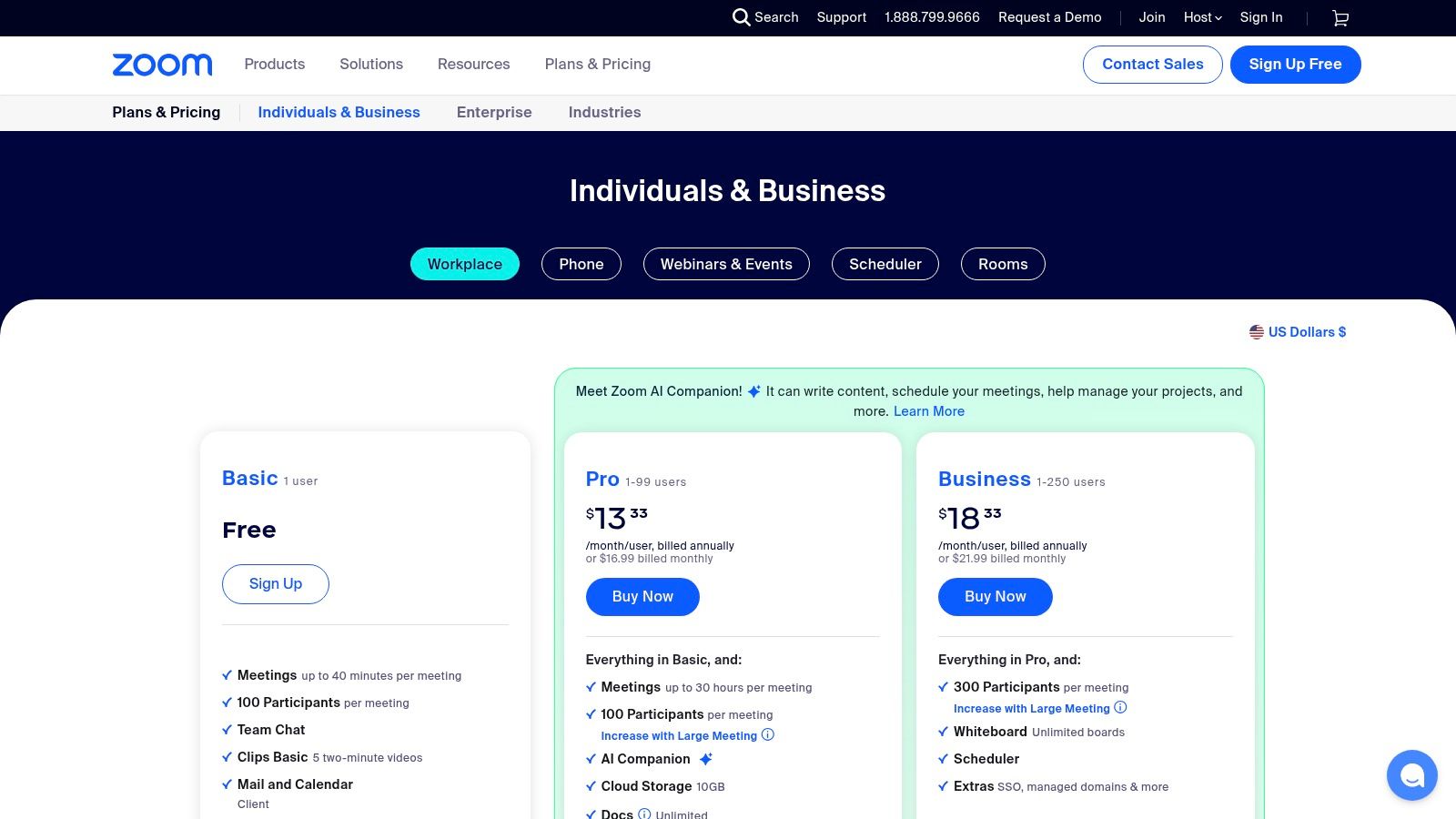
This platform excels at connecting disparate teams and external clients with minimal friction. The intuitive user interface ensures that participants can join and participate in meetings without extensive training, making it a go-to for client-facing calls, large-scale webinars, and cross-organizational collaboration. For a deeper dive into its capabilities, you can find a comprehensive guide on how to leverage Zoom for virtual meetings.
Best For and Pricing
Zoom is best suited for organizations of all sizes that prioritize high-quality video communication as the cornerstone of their remote work strategy. It is particularly effective for teams that frequently engage with external partners, clients, or large audiences through webinars and virtual events.
- Basic: Free, with a 40-minute limit on group meetings.
- Pro: Starts at $15.99 per user/month, removing the time limit and adding cloud recording.
- Business: At $19.99 per user/month, this plan includes features like company branding, single sign-on, and managed domains.
Key Features & Limitations
| Feature Highlights | Potential Downsides |
|---|---|
| Industry-Leading Video Reliability: Zoom’s robust infrastructure provides a stable and high-definition meeting experience across a wide range of devices and network conditions, minimizing disruptions during critical remote calls. | Add-on Costs Can Accumulate: While the core meeting product is competitively priced, essential features for larger businesses like Zoom Phone, webinar capacity, or additional cloud storage are paid add-ons. These can significantly increase the total cost of ownership. |
| Powerful Meeting & Webinar Tools: Features like breakout rooms, polling, virtual backgrounds, and in-depth host controls make meetings highly interactive and manageable. Its webinar platform is a market leader for hosting large-scale virtual events. | Complexity in Administration: As an organization grows, managing user licenses, security settings, integrations, and various add-on subscriptions across the Zoom admin portal can become complex and time-consuming for IT teams without a clear governance strategy. |
| Extensive Integration Ecosystem: Zoom integrates with a vast array of third-party applications, including project management tools like Asana and CRMs like Salesforce, allowing teams to launch meetings and streamline workflows directly from their existing platforms. | Focus on Synchronous Communication: Although Zoom has expanded into chat and whiteboarding, its primary strength and focus remain synchronous (real-time) communication. Teams looking for a platform with more deeply integrated asynchronous project management or document collaboration features may find it less comprehensive than an all-in-one suite. |
Website: https://zoom.us/pricing
6. Asana
Asana is a work management platform designed to help teams orchestrate their work, from daily tasks to strategic initiatives. It excels at providing clarity and visibility into who is doing what by when, making it an indispensable tool for coordinating complex projects across distributed teams. Asana centralizes communication and tasks in one place, moving teams away from scattered emails and spreadsheets to a structured, collaborative environment where progress is easily tracked.
The platform's strength lies in its flexibility and scalability, allowing it to adapt to various workflows, from simple to-do lists to sophisticated, cross-functional portfolio management. This adaptability makes it one of the most versatile remote work productivity tools for organizations aiming to align team efforts with company goals.
Best For and Pricing
Asana is ideal for teams and organizations of any size that require a robust system for project planning, task management, and progress tracking. It is particularly effective for marketing, operations, and product teams that manage multi-stage projects with dependencies.
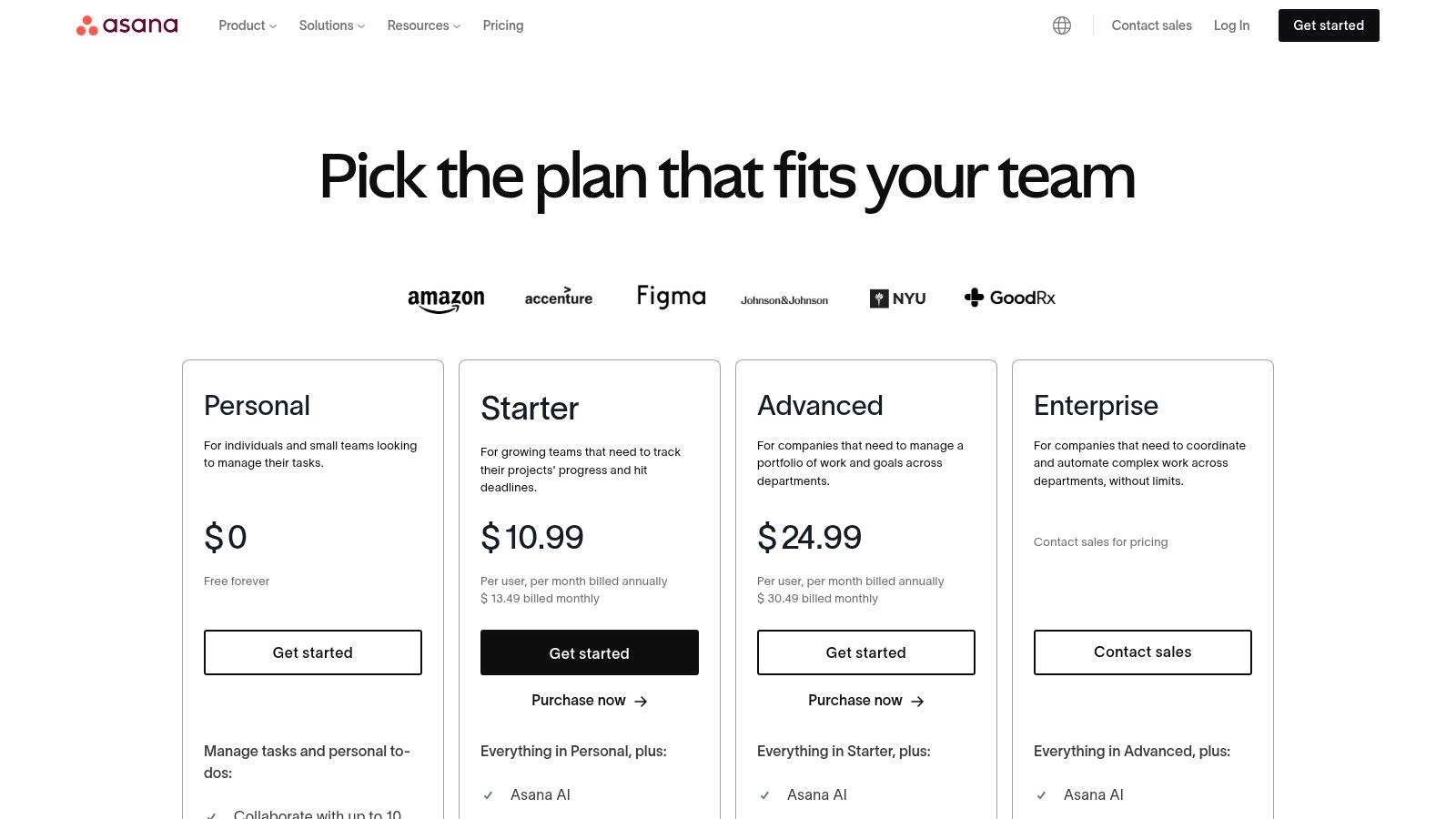
- Personal: Free for individuals or teams just getting started with project management.
- Starter: Starts at $10.99 per user/month and adds features like timelines, custom fields, and workflow automations.
- Advanced: At $24.99 per user/month, this plan includes advanced reporting, portfolios, and workload management.
Key Features & Limitations
| Feature Highlights | Potential Downsides |
|---|---|
| Multiple Project Views: Teams can visualize work in the format that suits them best, including Lists, Boards (Kanban), Timelines (Gantt charts), and Calendars. This flexibility ensures every team member can manage their tasks in a way that makes sense for their workflow. | Overwhelming for New Users: The sheer number of features and customization options can create a steep learning curve for new teams. Without a clear setup and onboarding process, the platform can feel complex and underutilized. |
| Powerful Automation & Integrations: Asana's Workflow Builder allows teams to automate routine tasks and processes, such as assigning work or updating project statuses. It also integrates with hundreds of other tools like Slack, Google Drive, and Microsoft Teams to centralize information. | Reporting Gated in Higher Tiers: While basic project dashboards are available on lower plans, the most powerful features for portfolio-level reporting and advanced analytics are reserved for the expensive Advanced and Enterprise plans. This limits visibility for smaller teams on a budget. |
| Goal and Portfolio Management: Asana connects daily tasks directly to overarching company objectives. The Portfolio view provides a real-time, bird's-eye perspective on the status of all key initiatives, helping remote leaders track progress and allocate resources effectively without constant check-ins. | Cost Can Scale Quickly: The per-user pricing model can become a significant expense for large teams or organizations. While the free plan is generous, growing teams will find essential collaboration and reporting features require a paid subscription, which adds up quickly as the team expands. |
Website: https://asana.com/pricing
7. Trello
Trello champions simplicity with its visual, card-based system, making it one of the most intuitive and accessible remote work productivity tools available. It uses the Kanban methodology, where tasks are represented as cards that move across lists on a board, visually tracking progress from "To Do" to "Done." This approach makes it exceptionally easy for non-technical teams to get started with project management without a steep learning curve. Its strength lies in its straightforward interface, which provides clarity on who is doing what and where each task stands in a workflow.
The platform is highly flexible, adapting to everything from content calendars and sales pipelines to simple team to-do lists. For remote teams, it offers a shared visual space that keeps everyone aligned on priorities and progress, eliminating the need for constant status update meetings.
Best For and Pricing
Trello is ideal for small to mid-sized teams, marketing departments, and individuals who need a simple yet powerful tool for task and lightweight project management. It excels where visual workflow organization is more important than complex dependency tracking. While a generous free plan exists, paid plans unlock crucial automation and view features.
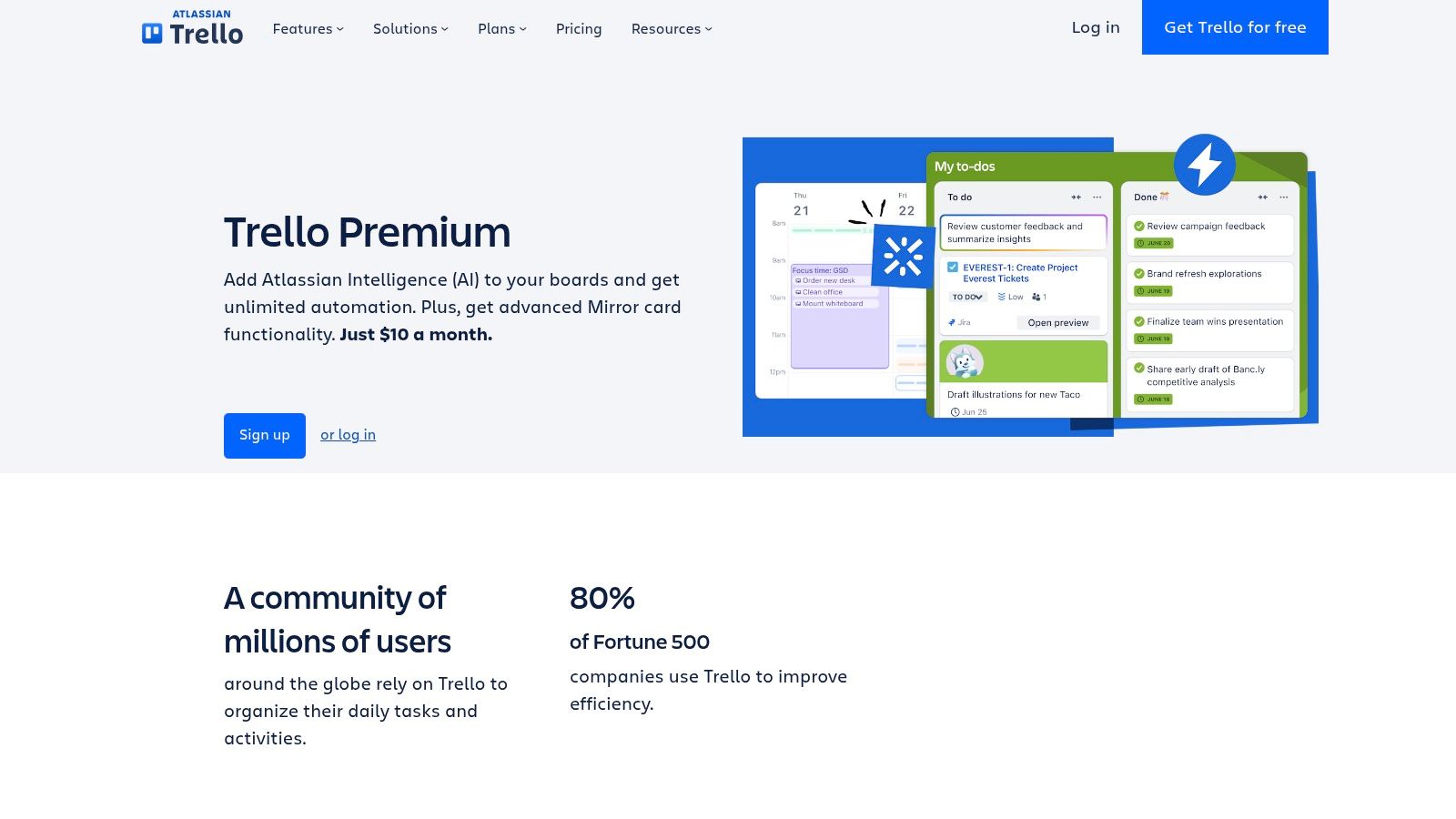
- Standard: At $5 per user/month, this plan adds advanced checklists, custom fields, and a single-board guest access.
- Premium: Starts at $10 per user/month and unlocks key views like Calendar, Timeline, and Dashboard, along with unlimited automation commands.
Key Features & Limitations
| Feature Highlights | Potential Downsides |
|---|---|
| Visual Kanban Boards: The core drag-and-drop interface is incredibly easy to learn and use, allowing teams to set up and manage workflows in minutes. This simplicity is its greatest asset for quick adoption. | Limited for Complex Projects: Trello is not built for intricate project management with deep hierarchies or complex resource dependencies. Managing large-scale programs or portfolios often requires more robust tools. |
| Powerful Automation (Butler): Trello's built-in automation, Butler, can create rule-based triggers and actions to handle repetitive tasks, such as moving cards, adding checklists, or notifying team members automatically. | Key Views are Gated: Essential project views like Timeline, Calendar, and Dashboard, which are crucial for strategic planning and oversight, are only available on the paid Premium plan. This can limit the utility of the Free and Standard tiers for serious project management. |
| Flexible Views and Power-Ups: Beyond the board view, paid plans offer Calendar and Timeline views for better scheduling. An extensive library of Power-Ups adds integrations and functionality from other apps. See how Trello can enhance your team's workflow and scheduling capabilities on deskcove.com. | Scalability Concerns: As the number of cards and boards grows, Trello can become cluttered and difficult to navigate. Without disciplined organization, it can quickly become overwhelming for larger teams or long-term projects, making it hard to find information and maintain a clear overview of all initiatives. |
Website: https://trello.com/premium
8. Notion
Notion is a uniquely flexible, all-in-one workspace that consolidates notes, documents, wikis, and project management into a single, customizable environment. It stands out among remote work productivity tools for its modular, block-based approach, allowing teams to build their own systems for knowledge management, task tracking, and documentation from scratch. This makes it an incredibly powerful platform for creating a central "source of truth" like a team handbook, project hub, or content calendar.
Unlike more rigid tools, Notion's strength lies in its ability to blend unstructured text with structured databases, offering synced views that can display the same information as a list, calendar, or Kanban board. Its recent integration of AI features further boosts its utility, enabling teams to summarize meeting notes, draft content, or query company knowledge directly within their workspace. For advanced insights into leveraging this powerful platform for enhanced productivity, you can explore a guide on mastering Notion AI.
Best For and Pricing
Notion is ideal for teams that need a highly customizable central knowledge base and light project tracking system. It's particularly effective for creative agencies, startups, and product teams that want to consolidate documentation, planning, and task management to reduce tool sprawl.
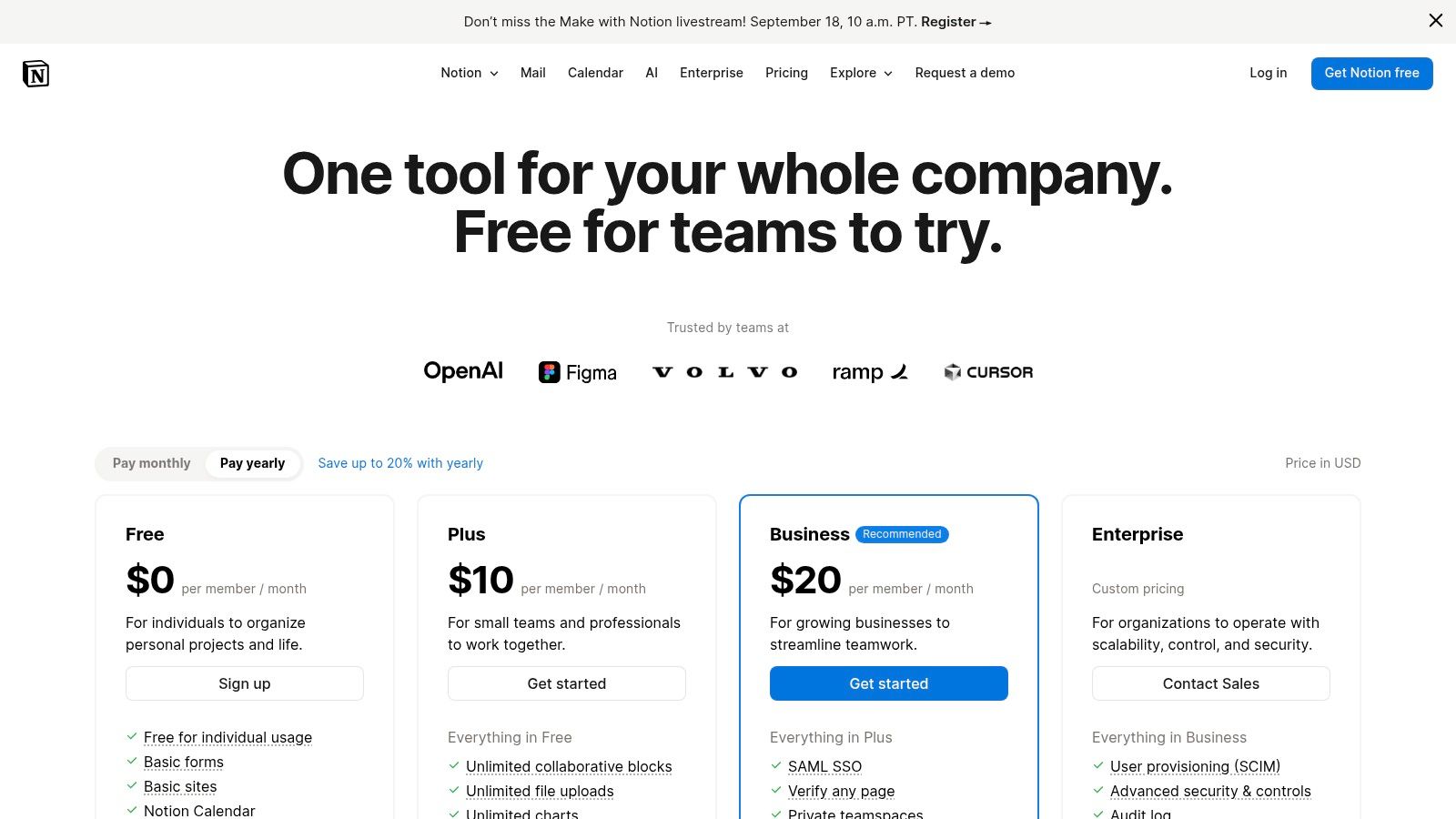
- Free: For individuals, with collaborative blocks and up to 10 guests.
- Plus: Starts at $8 per user/month (billed annually) for small groups, offering unlimited blocks and file uploads.
- Business: At $15 per user/month (billed annually), this plan adds advanced features like private teamspaces and bulk PDF exports.
Key Features & Limitations
| Feature Highlights | Potential Downsides |
|---|---|
| All-in-One Custom Workspace: Notion's core strength is its flexibility. Teams can build interconnected databases for projects, docs, and notes, replacing several disparate tools and centralizing information in one location with granular permissions in Teamspaces. | Requires Upfront Design: The platform's open-ended nature means it requires a thoughtful setup and clear governance. Without a well-defined structure, a workspace can quickly become disorganized and difficult for new team members to navigate, negating its productivity benefits. |
| Powerful Database Functionality: Users can create databases with custom properties, filters, and sorts. The ability to create "synced views" means the same dataset can be visualized as a Kanban board for tasks, a calendar for deadlines, or a gallery for design assets. | Not a Full-Featured PM Tool: While excellent for light project tracking, Notion lacks advanced project management features like Gantt charts, time tracking, or resource management found in dedicated tools. Teams with complex, dependent project timelines may find its capabilities insufficient for their needs. |
| Integrated Notion AI: Built-in AI assists with drafting content, summarizing long documents, generating action items from meeting notes, and answering questions based on the workspace's content. This accelerates content creation and information retrieval for remote teams. | Advanced Security is Gated: Key security and administrative features, such as SAML single sign-on (SSO), advanced page analytics, and audit logs, are reserved for the more expensive Business and Enterprise plans, which can be a barrier for smaller, security-conscious teams. |
Website: https://www.notion.so/pricing
9. Dropbox
Dropbox has evolved far beyond simple cloud storage, transforming into a comprehensive content hub designed for the modern distributed workforce. While its core strength remains secure, centralized file storage and sharing, it has integrated a powerful set of tools for document workflows, making it a standout choice among remote work productivity tools. With features like Dropbox Sign for eSignatures, Capture for asynchronous video feedback, and robust PDF editing, it streamlines the entire lifecycle of a document, from creation to finalization, all within a single, intuitive interface.
Its primary advantage is its simplicity and widespread adoption. Most team members and external clients are already familiar with the Dropbox interface, which significantly reduces friction and onboarding time for collaborative projects.
Best For and Pricing
Dropbox is ideal for creative agencies, media companies, and any remote team that manages a high volume of large files and requires streamlined document approval workflows. Its ease of use makes it perfect for organizations collaborating frequently with external partners or freelancers.
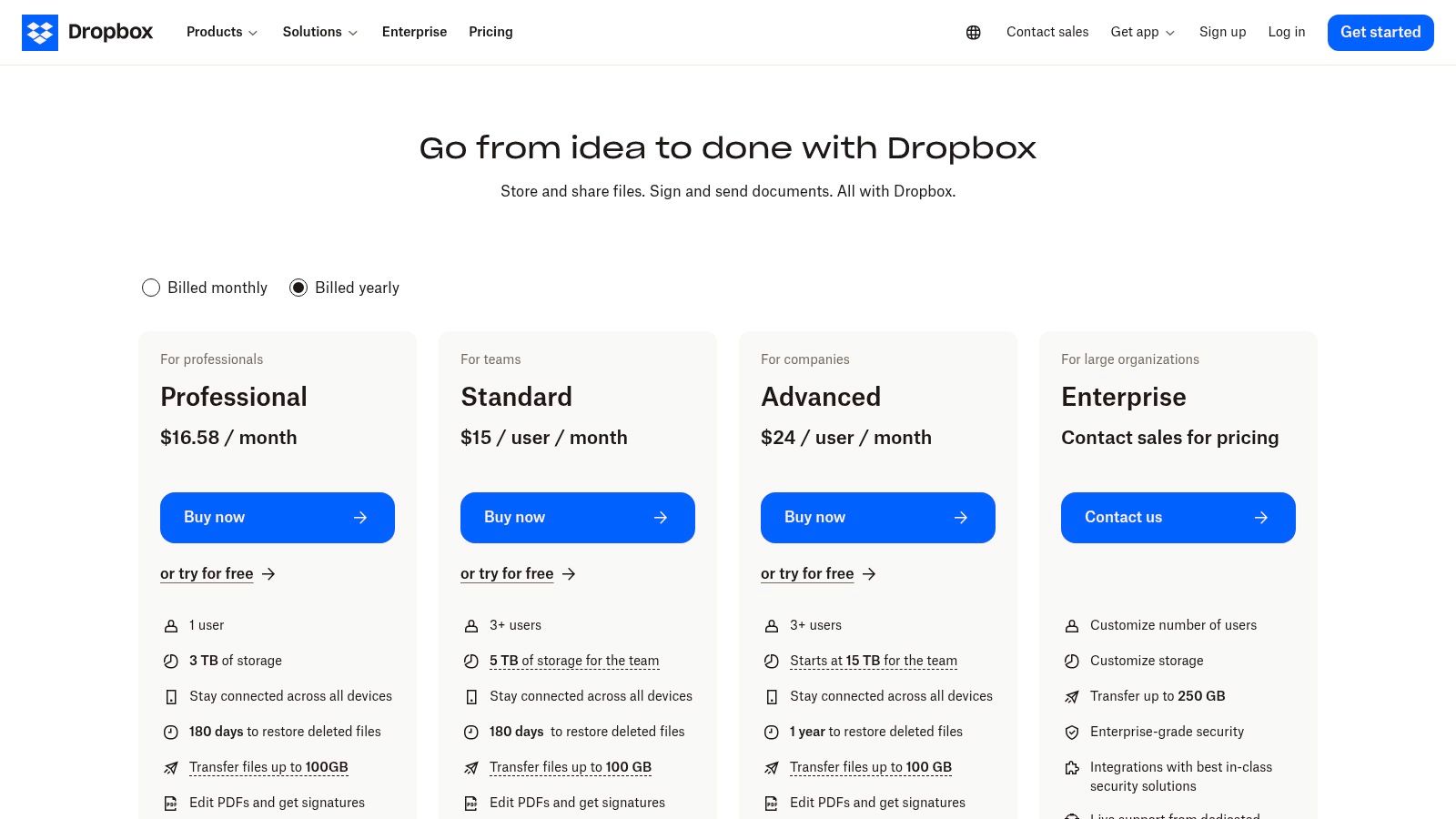
- Professional: Starts at $16.58 per month (billed annually) for one user, including 3 TB of storage and unlimited eSignature requests.
- Standard: At $15 per user/month (billed annually) for teams, this plan offers 5 TB of shared storage and robust admin controls.
Key Features & Limitations
| Feature Highlights | Potential Downsides |
|---|---|
| Unified Document Workflow Tools: Integrated features like unlimited eSignature requests (on business plans), PDF editing, and the Capture tool for screen recordings and video messages allow teams to manage review cycles and approvals without switching apps. | Tiered Storage and Features: Storage limits and access to advanced features like granular permissions and extended version history vary significantly between plans. Teams may find they need to upgrade to a more expensive tier to get a single critical feature, which can make initial cost estimates misleading. |
| Robust File Recovery and Version History: Dropbox provides extensive version history (up to 180 days on business plans) and a one-click file rewind feature, offering a strong safety net against accidental deletions or unwanted edits in a collaborative remote setting. | Less Integrated Communication: Unlike all-in-one platforms, Dropbox lacks native real-time chat or video conferencing. While it integrates with tools like Slack and Zoom, it relies on these third-party applications for synchronous communication, which can lead to a more fragmented workflow for some teams. |
| Simple and Secure External Sharing: The user experience for sharing files and folders with external clients or collaborators is famously straightforward and secure, with granular controls over link access, passwords, and expiration dates. | Higher Per-User Cost for Storage: For teams whose primary need is just bulk cloud storage, Dropbox can be more expensive per terabyte compared to some alternatives. The value proposition is strongest when teams actively use its integrated workflow features like Sign and Capture, not just its storage capabilities. |
Website: https://www.dropbox.com/business/plans-comparison
10. Zapier
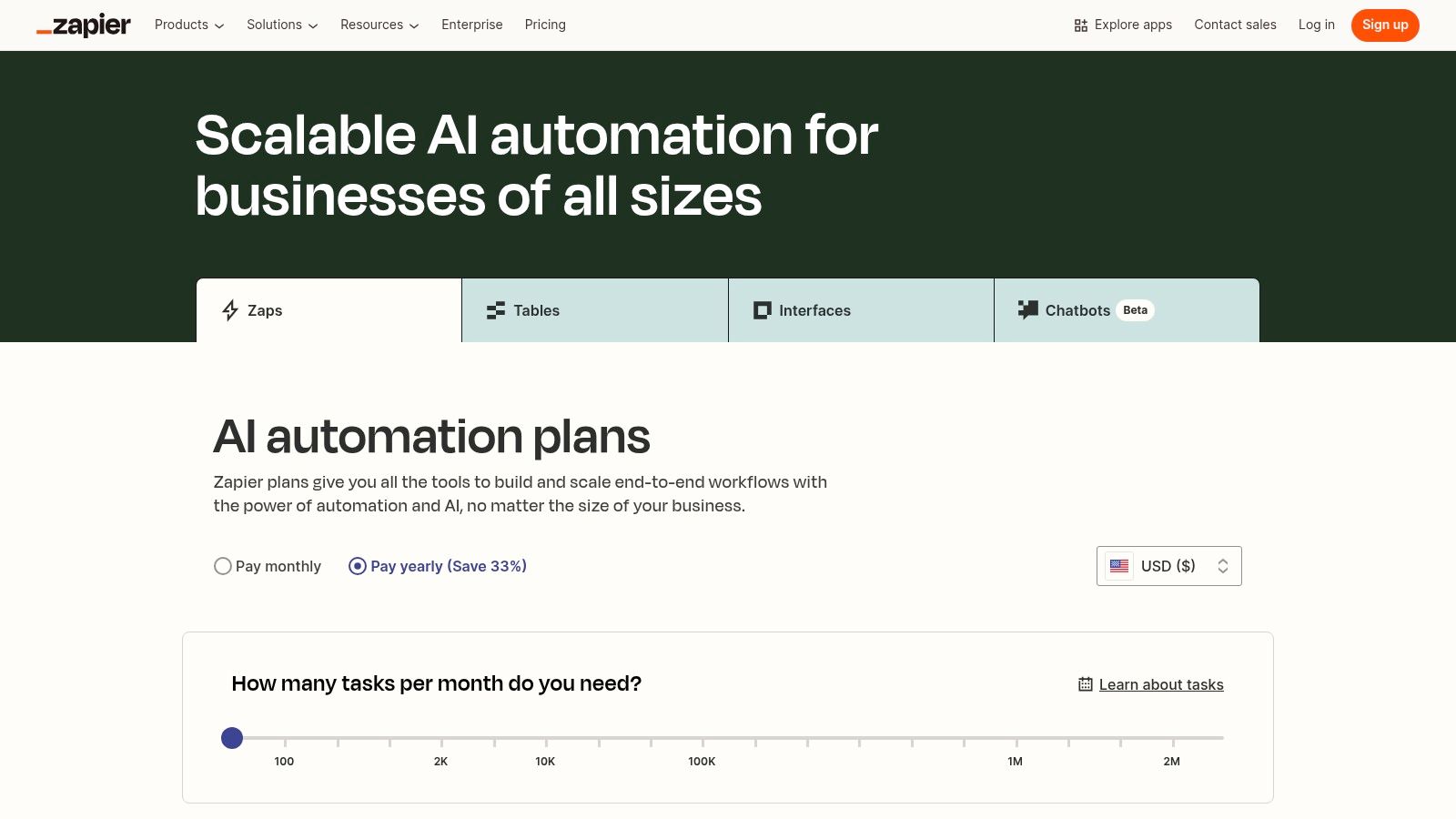
Zapier is a powerful no-code automation platform that serves as the connective tissue between the various applications your remote team uses daily. By linking over 7,000 apps, it automates repetitive tasks and orchestrates complex workflows, making it an indispensable asset among remote work productivity tools. Its core strength is its ability to create automated "Zaps" that trigger actions between otherwise disconnected software, such as creating a Trello card from a new Gmail message or posting a Slack notification when a sale is logged in a CRM.
This automation frees up valuable time, allowing remote team members to focus on strategic work rather than manual data entry or administrative tasks. With newer features like Tables for data management and AI-powered Chatbots and Agents, Zapier has evolved beyond simple triggers into a comprehensive workflow automation engine.
Best For and Pricing
Zapier is ideal for remote teams of all sizes looking to eliminate manual processes and integrate their tech stack without writing any code. It is particularly valuable for operations, marketing, and sales teams who rely on multiple cloud-based applications and need them to work together seamlessly.
- Free: A forever-free plan with 100 tasks/month for single-step Zaps.
- Starter: Starts at $19.99/month (billed annually) for multi-step Zaps and 750 tasks.
- Professional: Starts at $49/month (billed annually) with higher task limits and advanced features.
- Team: Starts at $69/month (billed annually) for collaborative workspaces and shared app connections.
Key Features & Limitations
| Feature Highlights | Potential Downsides |
|---|---|
| Vast Integration Library: With connections to over 7,000 applications, Zapier supports nearly every popular tool used by remote teams, enabling endless automation possibilities from simple notifications to complex, multi-step workflows. | Cost Scales with Usage: The pricing model is based on the number of "tasks" (automated actions) run per month. Teams with high-volume workflows can quickly find themselves needing to upgrade to more expensive plans to meet their usage. |
| AI-Powered Automation Tools: Features like Interfaces (forms/apps), Tables (database), and AI-powered Chatbots and Agents allow users to build more sophisticated, custom automation solutions directly within the Zapier platform without needing external tools. | Governance on Higher Tiers: Key administrative features for managing a team, such as shared app connections, user roles, and centralized billing, are restricted to the "Team" and "Enterprise" plans, which can be a barrier for smaller teams. |
| User-Friendly Workflow Builder: The intuitive, no-code Zap editor allows anyone on the team, regardless of technical skill, to build, test, and deploy automations in minutes. This empowers non-developers to solve their own workflow challenges. | Learning Curve for Complexity: While basic Zaps are simple to create, building robust, multi-step automations with conditional logic, filters, and webhooks can require a deeper understanding of the platform and a period of trial and error. |
Website: https://zapier.com/pricing
11. Chrome Web Store (Productivity Extensions)
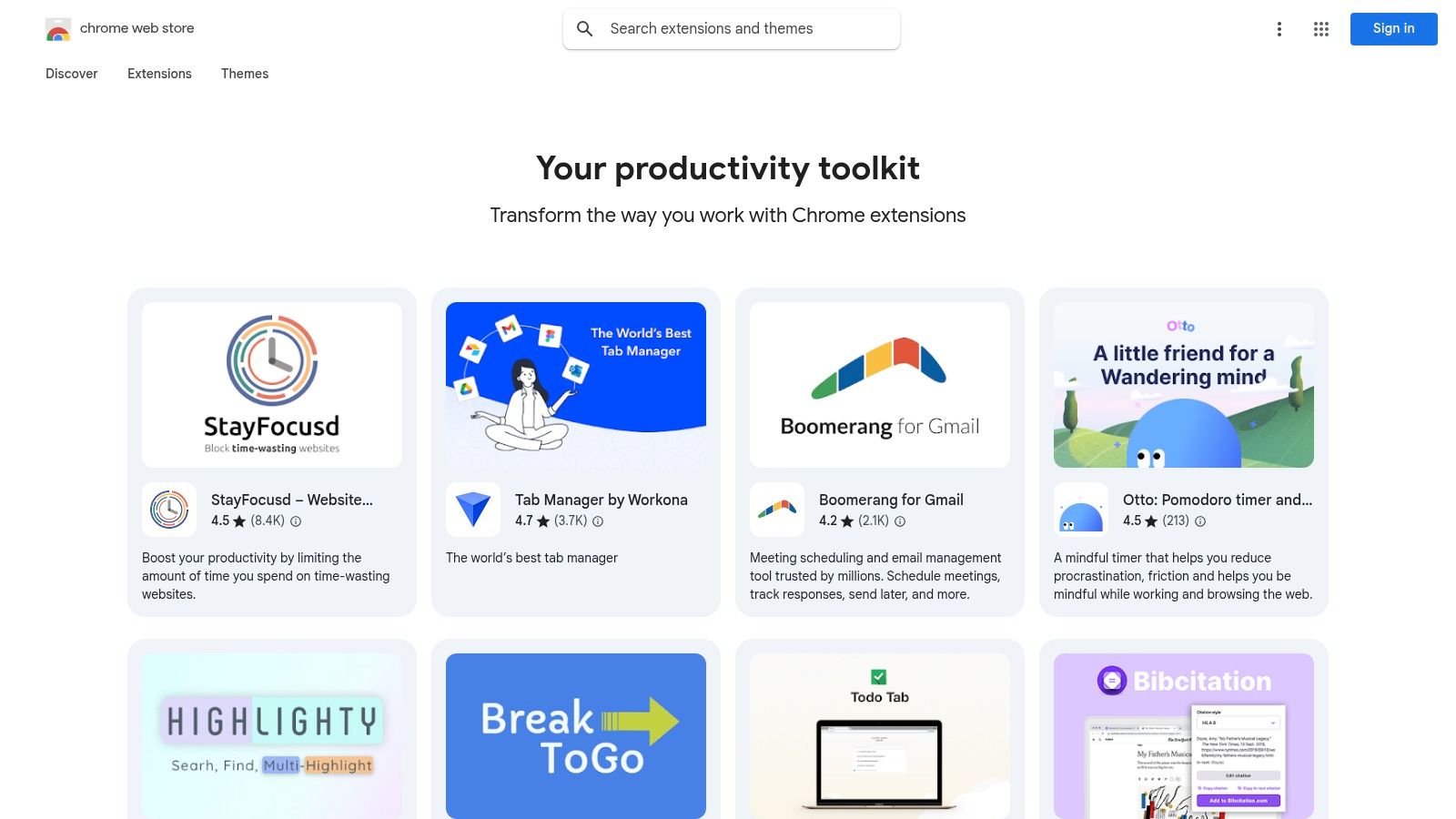
The Chrome Web Store is less a single tool and more of a force multiplier, offering a vast marketplace of browser extensions that can customize your digital workspace for peak efficiency. For remote workers who live in their browsers, these add-ons serve as powerful remote work productivity tools by automating small tasks, blocking distractions, and integrating disparate apps. Its strength lies in its ability to fill the specific gaps in your workflow, whether that means managing tabs, clipping research, or enhancing your CRM, all with a one-click installation.
This accessibility allows individuals and teams to quickly build a highly personalized and efficient work environment directly within their browser, solving niche productivity challenges that larger, all-in-one platforms might overlook.
Best For and Pricing
The Chrome Web Store is ideal for individuals, freelancers, and teams of all sizes looking to enhance their existing software stack with low-cost, targeted solutions. It is particularly effective for those seeking to create workflow shortcuts and eliminate repetitive manual tasks without investing in entirely new platforms.
- Pricing: Varies widely. A significant number of extensions are free, offer freemium models, or are available for a small one-time fee or subscription.
Key Features & Limitations
| Feature Highlights | Potential Downsides |
|---|---|
| Curated Productivity Collections: The store features curated collections, like the "Productivity" category, and an advanced search function that helps users discover well-vetted tools for specific needs. | Variable Quality and Security: As an open marketplace, the quality and security of extensions can differ greatly. It is crucial to verify the developer's reputation, check reviews, and understand the permissions an extension requests before installing. |
| Centralized Management: For businesses using Google Workspace, administrators can use Google Admin to create policies that whitelist, blacklist, or automatically install specific extensions across all managed user profiles, ensuring consistency and security. | Performance Impact: Installing too many extensions, especially poorly coded ones, can significantly slow down browser performance and increase memory usage. This "extension overload" requires careful management to avoid creating a new productivity bottleneck. |
| Wide Range of Tool Categories: The marketplace offers a vast selection of tools, including focus timers, content blockers, password managers, screen recorders, note clippers, and helpers for specific CRMs and project management platforms. | Dependency on Chrome: The primary limitation is that these tools are tied to Google Chrome or other Chromium-based browsers. This can be a drawback for teams that use a mix of browsers like Firefox or Safari across their organization. |
Website: https://chromewebstore.google.com/collection/productivity
12. Amazon (Software Marketplace – Business & Office)
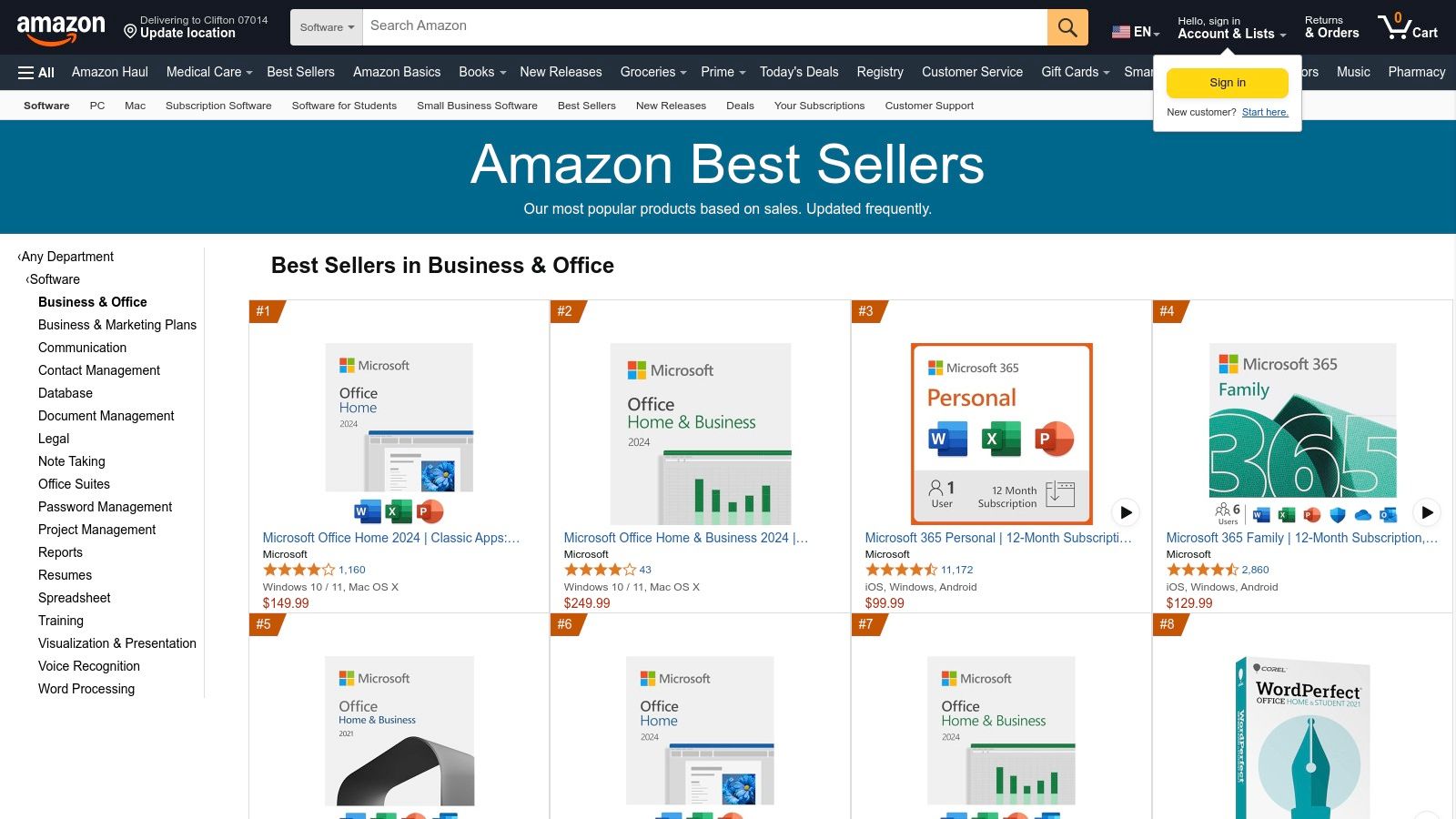
While not a direct productivity tool itself, Amazon's Business & Office software marketplace serves as a valuable procurement hub for teams looking to purchase licenses and hardware. It offers a centralized platform for comparison shopping on key remote work productivity tools, including one-time purchases of Microsoft Office, various PDF editors, and antivirus software. The primary advantage is leveraging Amazon's familiar interface, competitive pricing, and user reviews to make informed purchasing decisions for both digital downloads and physical goods like webcams or ergonomic chairs.
For small businesses or freelancers, it can be a cost-effective way to acquire perpetual licenses or find deals on subscriptions without navigating multiple vendor websites. The ability to use a single business account for both software and hardware simplifies expense management and procurement.
Best For and Pricing
Amazon's software marketplace is best for small businesses, freelancers, and teams looking to comparison shop for software licenses and physical remote-work accessories. It is particularly useful for those who prefer one-time purchase software over subscriptions or want to leverage Prime shipping for hardware.
- Pricing is variable: Costs are determined by individual sellers and Amazon's own listings. Prices for popular software like Microsoft 365 are often competitive with direct-from-vendor rates, with frequent promotions.
- Digital vs. Physical: Many software titles are available as instant digital downloads, while physical items are subject to standard shipping options, including Prime.
Key Features & Limitations
| Feature Highlights | Potential Downsides |
|---|---|
| Centralized Procurement Hub: Teams can purchase a wide range of products, from digital software licenses for tools like Adobe Acrobat or Microsoft Office to essential hardware such as monitors and keyboards, all through a single, familiar platform. | Third-Party Seller Variance: The marketplace includes numerous third-party sellers, which can lead to confusion over product versions (e.g., regional licenses, academic editions) and authenticity. It's crucial to verify seller ratings and product details carefully before purchasing. |
| Buyer Reviews & Best-Seller Rankings: The platform's extensive user review system and sales rankings provide valuable social proof and real-world feedback, helping teams evaluate different software options and accessories before committing to a purchase. | Complex License Activation: For subscription software, the purchase on Amazon typically provides a product key. The activation process must be completed on the software vendor's website, which adds an extra step and can sometimes complicate support inquiries if issues arise. |
| Competitive Pricing and Deals: Amazon frequently offers discounts and promotions on software and electronics, allowing cost-conscious teams to find deals that may not be available directly from the manufacturer. This makes it a great resource for budget optimization. | Limited for Enterprise Scale: The marketplace is not designed for large-scale enterprise license management. Organizations requiring volume licensing, advanced deployment tools, and centralized admin controls are better served by purchasing directly from vendors or specialized resellers. |
Website: https://www.amazon.com/Best-Sellers-Business-Office/zgbs/software/229535
Productivity Tools Feature Comparison
| Product | Core Features / Monitoring ✨ | User Experience & Quality ★★★★☆ | Value Proposition & Price 💰 | Target Audience 👥 | Unique Selling Points 🏆✨ |
|---|---|---|---|---|---|
| DeskCove 🏆 | Automatic time, screenshots, webcam, app & URL tracking | Detailed insights, configurable per user | Starts at $10/user/mo, 14-day free trial | Remote teams, freelancers, managers | All-in-one productivity monitoring & real-time reporting |
| Microsoft 365 | Collaboration suite: Teams, Office apps, cloud storage | Deep integration, enterprise-grade security | Various tiers, higher plans for desktop apps | Businesses standardizing MS products | Strong compliance & enterprise support |
| Google Workspace | Gmail, Docs, Meet, Drive, AI features | Excellent real-time collaboration, web-native | Multiple tiers; AI features included | Distributed teams, cloud-first users | Built-in Gemini AI for productivity boost |
| Slack | Messaging, channels, huddles, 2600+ integrations | Excellent for team communication, external collaboration | Free & paid tiers with advanced AI | Teams needing chat & collaboration | Extensive integrations & Slack AI |
| Zoom (Zoom Workplace) | HD video meetings, phone, webinars, developer SDK | Reliable video experience | Tiered pricing, add-ons increase cost | Teams needing video & phone systems | Mature video tech & advanced meeting tools |
| Asana | Task tracking, timelines, AI options, dashboards | Flexible views, scalable workflow management | Pricing varies; premium reporting tiers | Project managers, remote teams | Powerful automation & reporting |
| Trello | Kanban boards, checklists, calendar, Butler automation | Very low learning curve | Free & paid plans with advanced features | Small teams, non-technical users | Simple visual task management & AI integrations |
| Notion | Docs, databases, wikis, AI, customizable teamspaces | Highly customizable, multi-tool replacement | Multiple tiers, business features costly | Knowledge hubs, remote teams | Combines docs + data with AI drafting |
| Dropbox | Cloud storage, eSignatures, PDF tools, video capture | Easy sharing, robust restore | Tiered pricing, advanced features gated | Teams needing file workflows | Integrated eSignature & asynchronous video tools |
| Zapier | No-code automation, 7000+ apps, collaborative features | Large app ecosystem, AI-powered | Free & paid; high usage requires upgrades | Automation enthusiasts, remote workflows | Extensive integrations & AI-powered automations |
| Chrome Web Store (Extensions) | Browser productivity extensions: focus tools, managers | Quick install, many free options | Mostly free or low cost | Chrome users needing productivity tools | Wide variety of curated productivity extensions |
| Amazon (Business Software) | Software licenses, digital downloads, business accounts | Competitive pricing, easy returns | Varies by product | Buyers needing software/office tools | One-stop marketplace for software & accessories |
Building Your Ideal Remote Work Ecosystem
Navigating the expansive landscape of remote work productivity tools can feel overwhelming, but the journey to a more efficient, connected, and transparent virtual workspace is a strategic one. As we've explored, from foundational suites like Microsoft 365 and Google Workspace to specialized powerhouses like Asana, Zapier, and DeskCove, the perfect solution isn't a single magic bullet. Instead, it’s about architecting a bespoke digital ecosystem that aligns with your team's unique DNA, workflows, and goals.
The tools detailed in this guide represent the building blocks of that ecosystem. Your core challenge now is to move from understanding what each tool does to identifying which ones solve your team's most pressing problems. The key takeaway is this: technology should serve your process, not dictate it. A flashy project management tool is useless if your team finds its interface confusing, and a powerful communication platform can create more noise than signal without clear guidelines.
From Analysis to Action: Your Next Steps
The selection process is a critical phase that demands careful consideration and team involvement. Avoid making decisions in a vacuum. The most successful tool adoptions happen when the end-users, your team members, are part of the evaluation.
Here is a practical roadmap to guide your implementation:
- Identify Your Core Needs: Before you even look at a pricing page, map out your primary pain points. Are you struggling with asynchronous communication? Do you lack visibility into project progress? Are you concerned about maintaining productivity levels without micromanaging? Prioritize these challenges.
- Shortlist and Test: Based on your needs, create a shortlist of two or three tools from each essential category (communication, project management, performance analytics). Leverage free trials extensively. Create a small pilot group to test the tools in real-world scenarios for a week or two.
- Gather Genuine Feedback: Solicit honest, structured feedback from your pilot team. What did they love? What frustrated them? Did the tool simplify their work or add unnecessary complexity? This qualitative data is just as important as feature checklists.
- Consider Integration and Scalability: The most effective remote work productivity tools don't operate in silos. Evaluate how well a new tool integrates with your existing stack. A tool that connects seamlessly via Zapier or has native integrations with your collaboration hub will deliver far more value. Also, consider your future growth. Will this tool scale with you as your team expands?
The Human Element of Implementation
Remember, implementing new software is as much about people as it is about technology. A successful rollout requires a thoughtful change management strategy.
- Communicate the "Why": Clearly explain the benefits of the new tool to the entire team. Frame it as a solution to shared frustrations, not as a top-down mandate.
- Provide Comprehensive Training: Host training sessions, create simple documentation, and designate a "tool champion" who can act as a go-to resource for questions.
- Set Clear Expectations: Establish guidelines for how each tool should be used. For instance, define what constitutes an urgent Slack message versus a comment on an Asana task.
Ultimately, building your ideal remote work toolkit is an iterative process. It's about finding the right balance between structure and flexibility, collaboration and deep work, and trust and accountability. By thoughtfully selecting, testing, and integrating the right combination of remote work productivity tools, you can empower your team to not just function, but to truly thrive in a distributed environment. This strategic investment in your digital infrastructure will pay dividends in enhanced productivity, improved morale, and sustainable long-term success.
Ready to gain unparalleled clarity into your team's productivity and workflow patterns? DeskCove provides the essential data-driven insights you need to manage performance effectively and transparently. Discover how our powerful yet user-friendly platform can become the cornerstone of your remote work productivity tools by visiting DeskCove to start your free trial today.